


MT5 Tick Data
دليل المستخدم التفصيلي
البدء السريع
INFO
لا يستغرق اتباع هذا الدليل السريع سوى 5–10 دقائق فحسب.
التنزيل
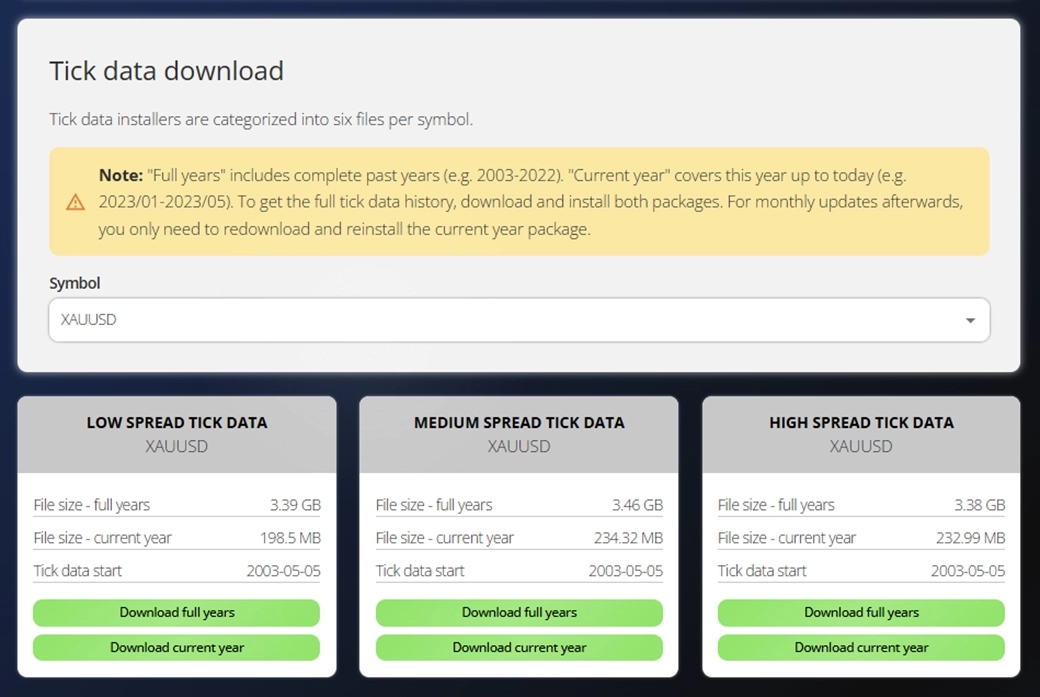
بعد الاشتراك، يمكنك تنزيل برامج تثبيت بيانات التيك من مركز التنزيل المستند إلى الويب. ما عليك سوى اختيار الرمز وملف تعريف السبريد المطلوب، ثم النقر على زر التنزيل.
تنقسم برامج التثبيت إلى سنوات كاملة والسنة الحالية. ملفات السنة الكاملة كبيرة الحجم نسبياً، لكن يكفي تنزيلها مرة واحدة فقط في بداية كل سنة جديدة. أما ملف السنة الحالية فأصغر حجماً ويُحدَّث شهرياً، لذا يكفي إعادة تنزيله في بداية كل شهر للبقاء محدَّثاً.
ملاحظة: تُحدَّث برامج تثبيت MT5 Tick Data في العاشر من كل شهر لتشمل أحدث بيانات التيك. أعد التنزيل والتثبيت للحصول على أحدث البيانات.
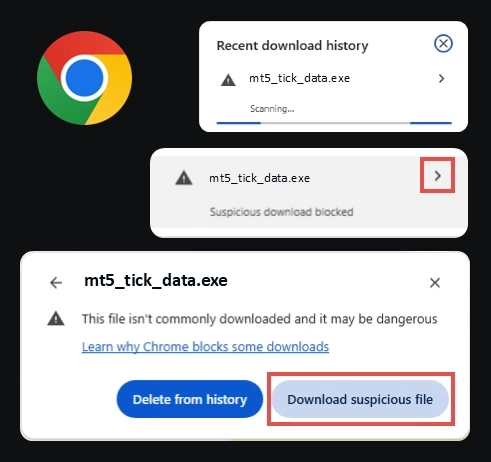
قد يعرض متصفحك تحذيراً عند تنزيل الملف التنفيذي. هذا سلوك طبيعي عند تنزيل ملفات .exe. ما عليك سوى اختيار الاحتفاظ بالملف.
نصيحة: لست متأكداً من ملف تعريف السبريد الذي تختار؟ ابدأ بـ SPREAD_MEDIUM. فهو يمثل متوسط ظروف السوق وهو مناسب لمعظم سيناريوهات التحقق. راجع الرموز المتاحة للاطلاع على القائمة الكاملة للرموز وملفات تعريف السبريد المتاحة.
تشغيل برنامج التثبيت
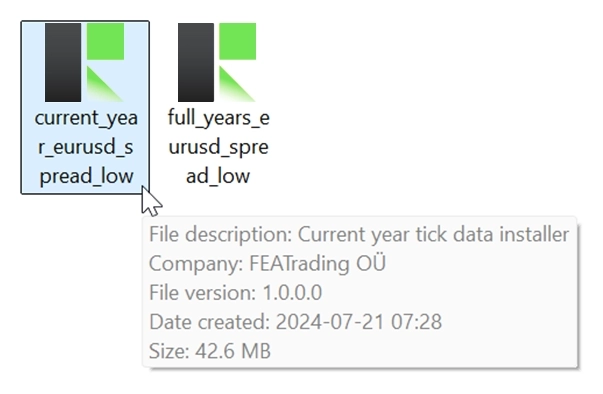
انقر نقراً مزدوجاً على ملف الإعداد المنزَّل لبدء عملية التثبيت. قد تستغرق عملية الإعداد ما يصل إلى 10 دقائق، بما في ذلك مرحلتا تشغيل المثبّت ونسخ البيانات.
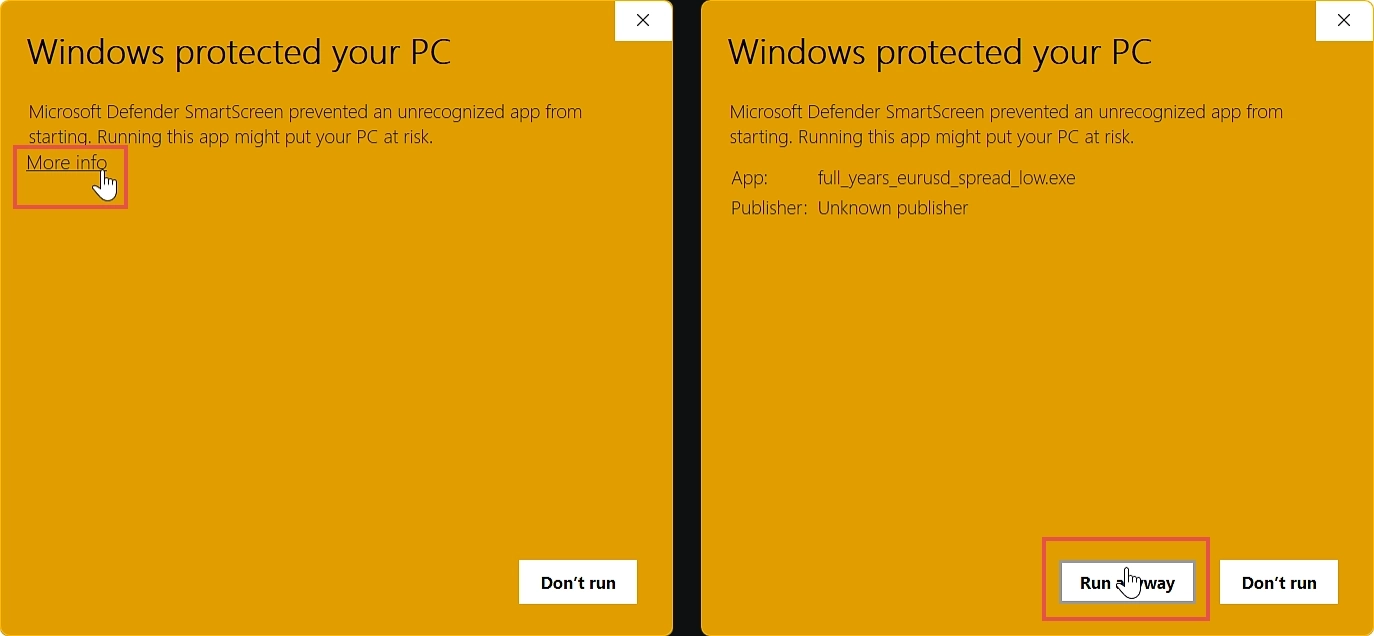
قد يعرض Windows تحذير أمان SmartScreen لأن برنامج التثبيت لم يحصل بعد على توقيع رمزي. هذا متوقع ويمكن المتابعة بأمان:
- انقر على “مزيد من المعلومات” في مربع حوار Windows SmartScreen
- ثم انقر على “تشغيل على أي حال” لمتابعة التثبيت
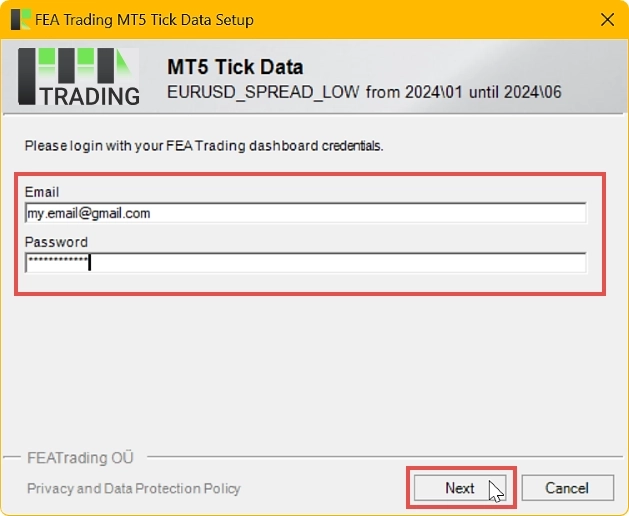
أثناء التثبيت، ستُطلب منك إدخال بيانات تسجيل الدخول للتحقق من اشتراكك. هذه هي نفس بيانات الاعتماد التي أعددتها خلال عملية الدفع وتستخدمها لتسجيل الدخول إلى مركز التنزيل.
اختيار نسخة MetaTrader
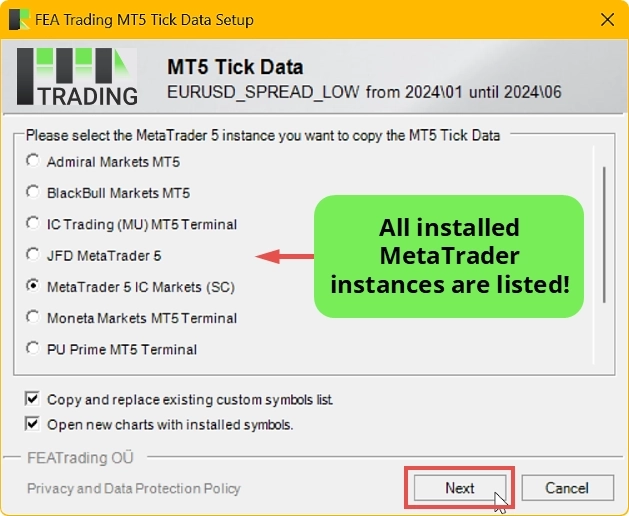
سيطلب منك برنامج التثبيت اختيار نسخة MetaTrader 5 التي ستستقبل بيانات التيك. إذا كانت لديك عدة تثبيتات لـ MetaTrader 5 على جهاز الكمبيوتر، اختر النسخة التي تريد استخدام بيانات التيك فيها.
نسخ بيانات التيك
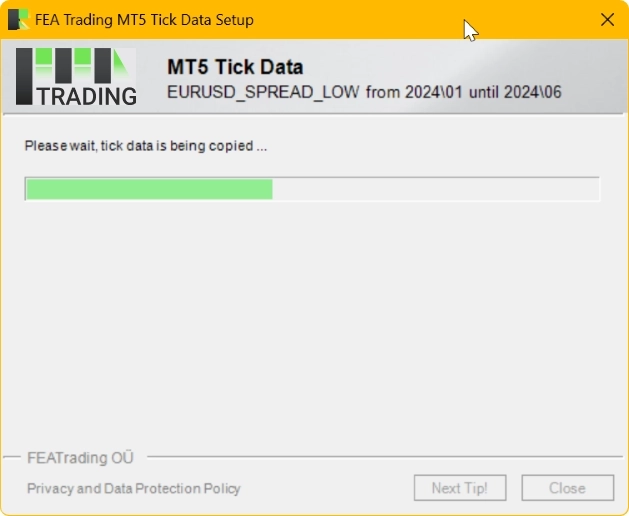
قد تستغرق عملية النسخ عدة دقائق نظراً لكميات البيانات الكبيرة التي يجري نقلها وضبطها. يُرجى الانتظار حتى انتهاء خطوة التثبيت.
مهم: يجب أن تكون نسخة MetaTrader 5 المختارة مغلقة قبل المتابعة. إذا كانت لا تزال تعمل، سيعرض برنامج التثبيت تحذيراً.
استكشاف البيانات في الرسم البياني
بعد التثبيت، افتح MetaTrader 5. ستعرض نافذة مراقبة السوق الآن الرموز المخصصة المضافة حديثاً. تستند هذه الرموز إلى بيانات التيك غير المتصلة بالإنترنت بدلاً من التغذيات المباشرة، وهي مصممة حصرياً للاستخدام مع اختبار الاستراتيجية. عادةً ما تحمل أسماء مشابهة للرمز المباشر مع إضافة خاصية السبريد. تظهر ثلاثة رموز مخصصة لكل أصل (منخفض، متوسط، مرتفع).
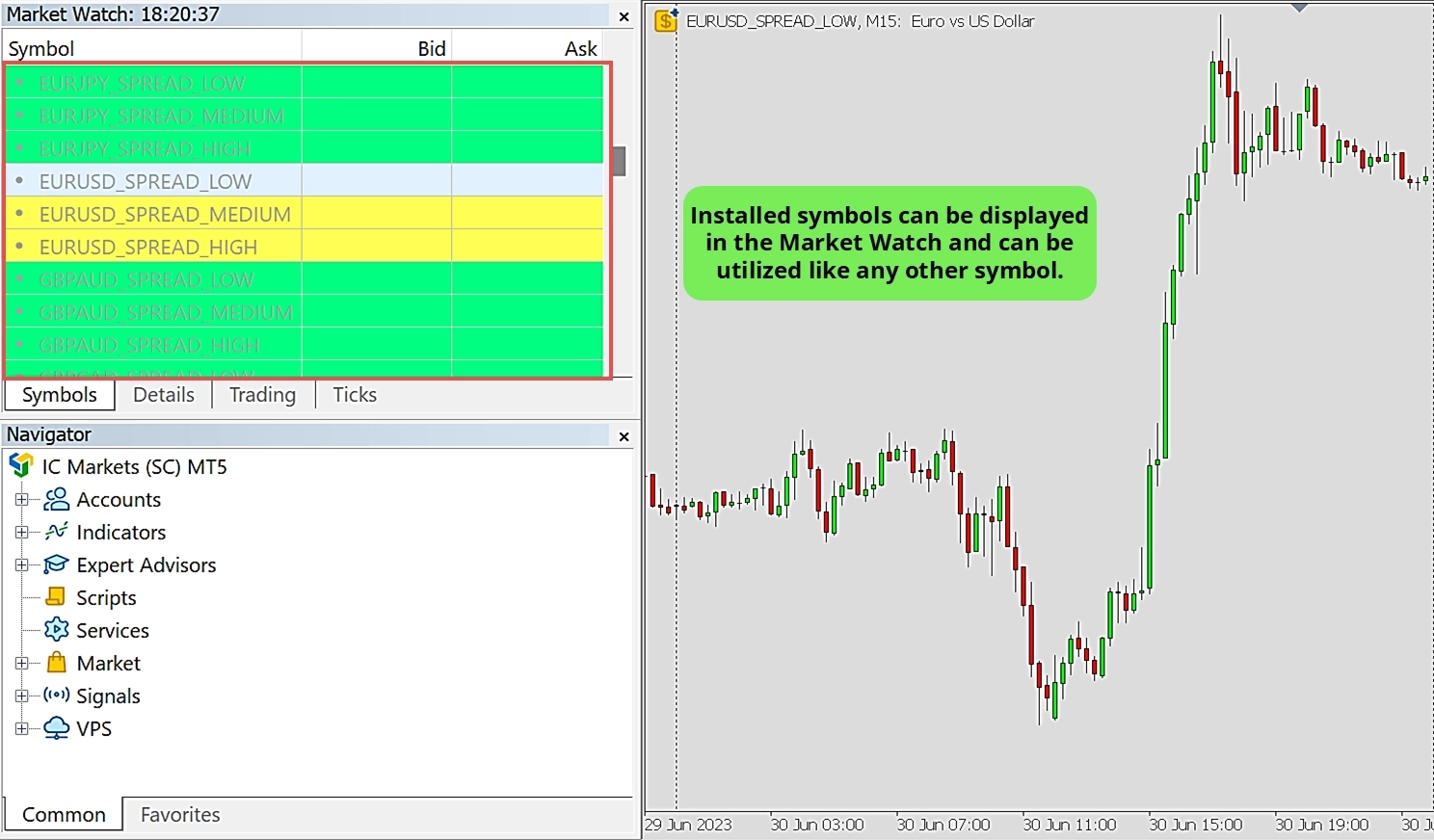
نصيحة: يضيف برنامج التثبيت في وقت واحد جميع الرموز المخصصة المتاحة إلى نافذة مراقبة السوق، لكنه ينسخ فقط بيانات التيك التي اخترتها للتثبيت. نوصي بالفصل بين التداول المباشر واختبارات الاستراتيجية من خلال تشغيلهما في نسختَين مختلفتَين من MetaTrader 5.
استخدام بيانات التيك مع اختبار الاستراتيجية
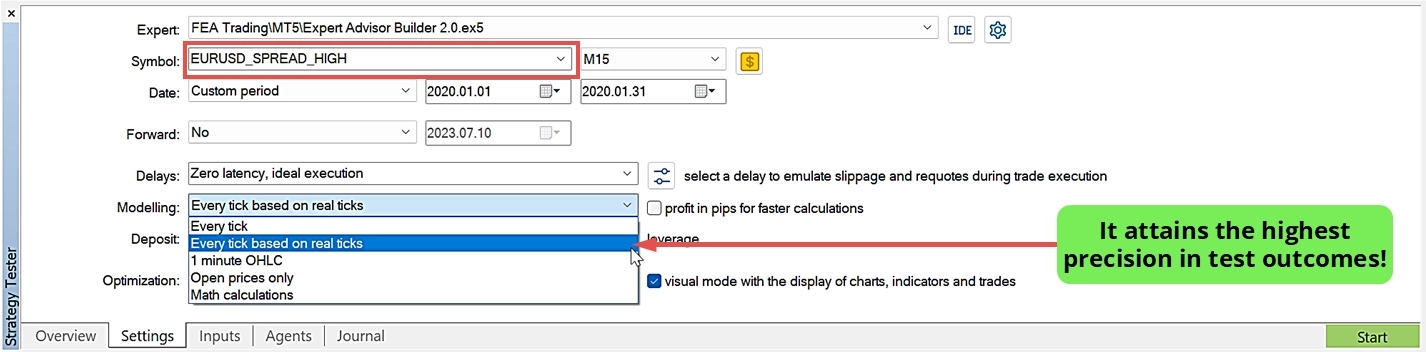
افتح اختبار الاستراتيجية في MetaTrader 5، واختر الرمز المخصص الذي ثبّته، ثم غيّر نموذج البيانات إلى كل تيك استناداً إلى التيكات الحقيقية. يتيح ذلك إجراء اختبار الاستراتيجية بأعلى دقة ممكنة، ويعمل بشكل عام مع أي مستشار خبير أو مؤشر.
| الإعداد | القيمة الموصى بها |
|---|---|
| الرمز | اختر الرمز المخصص المثبَّت (مثال: EURUSD_SPREAD_MEDIUM) |
| نموذج البيانات | كل تيك استناداً إلى التيكات الحقيقية |
| الفترة الزمنية | اختر الإطار الزمني المطلوب |
| نطاق التاريخ | حدد تاريخَي البداية والنهاية ضمن نطاق بيانات التيك المتاح |
مهم: اختر دائماً “كل تيك استناداً إلى التيكات الحقيقية” نموذجاً للبيانات لتحقيق جودة نمذجة بنسبة 100%، وهي أعلى دقة ممكنة في MetaTrader 5.
لا تتطلب استراتيجياتك الآلية الحالية أي تعديلات. يعمل MT5 Tick Data بشفافية على مستوى المنصة. ما عليك سوى اختيار الرمز المخصص وستستخدم استراتيجيتك تلقائياً البيانات التاريخية الأصلية أثناء التحقق.
حذف بيانات التيك
لا تتطلب بيانات التيك أي تعديلات خاصة على MetaTrader، لذا يمكن إجراء الحذف بسهولة باستخدام نافذة إدارة الرموز المدمجة.
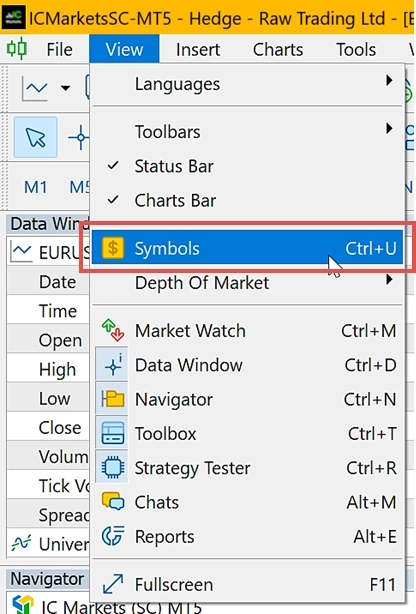
- افتح نافذة إدارة الرموز بالانتقال إلى عرض (View) ← رموز (Symbols)
- ابحث عن اسم الرمز المخصص الذي تريد حذفه
- انقر بزر الفأرة الأيمن على الرمز واختر حذف (Delete) من قائمة السياق
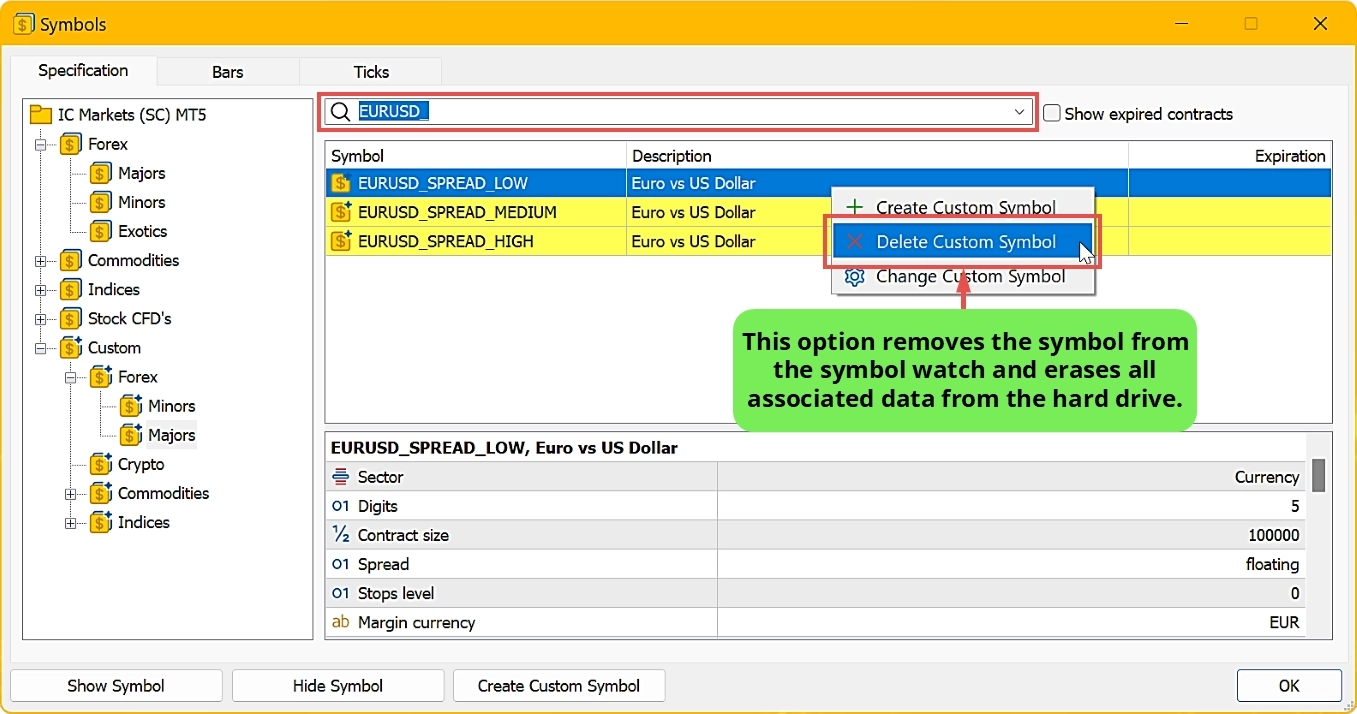
سيؤدي ذلك إلى إزالة بيانات التيك والرمز المخصص معاً من نسخة MetaTrader 5 لديك.
مرجع سريع
| الموضوع | التفاصيل |
|---|---|
| مدة الإعداد | حتى 10 دقائق لكل رمز |
| التحديثات الشهرية | حول العاشر من كل شهر |
| ملفات تعريف السبريد | 3 لكل رمز (منخفض، متوسط، مرتفع) |
| الرموز المدعومة | 26 رمزاً عبر فئات أصول متعددة |
| ملكية البيانات | البيانات المنزَّلة ملكك للاحتفاظ بها حتى بعد الإلغاء |
| تعديلات الاستراتيجية | غير مطلوبة، يعمل مع جميع الاستراتيجيات الحالية |
| المنطقة الزمنية | UTC+02:00 بما في ذلك التوقيت الصيفي (DST) |
هل تحتاج إلى مساعدة؟
تجد إجابات كثير من الأسئلة الشائعة في الأسئلة الأكثر تداولاً الخاصة بـ MT5 Tick Data. يُرجى الاطلاع عليها أولاً. إذا كنت لا تزال بحاجة إلى مساعدة، يسعد فريق الدعم لدينا بمساعدتك.
الرموز المتاحة
الرموز الـ 26 التالية متاحة حالياً مع سجل كامل لبيانات التيك:
العملات (19 رمزاً)
| الرمز | تاريخ البداية | تاريخ النهاية | المنطقة الزمنية | تقرير الجودة |
|---|---|---|---|---|
| AUDCAD | 2006-01-01 | 2026-08-31 | GMT+2 incl. DST | تنزيل |
| AUDCHF | 2006-03-01 | 2026-08-31 | GMT+2 incl. DST | تنزيل |
| AUDJPY | 2003-12-01 | 2026-08-31 | GMT+2 incl. DST | تنزيل |
| AUDNZD | 2006-12-12 | 2026-08-31 | GMT+2 incl. DST | تنزيل |
| AUDUSD | 2003-08-04 | 2026-08-31 | GMT+2 incl. DST | تنزيل |
| EURAUD | 2005-10-08 | 2026-08-31 | GMT+2 incl. DST | تنزيل |
| EURCAD | 2004-10-25 | 2026-08-31 | GMT+2 incl. DST | تنزيل |
| EURCHF | 2003-08-04 | 2026-08-31 | GMT+2 incl. DST | تنزيل |
| EURGBP | 2003-08-04 | 2026-08-31 | GMT+2 incl. DST | تنزيل |
| EURJPY | 2003-08-04 | 2026-08-31 | GMT+2 incl. DST | تنزيل |
| EURUSD | 2003-05-05 | 2026-08-31 | GMT+2 incl. DST | تنزيل |
| GBPAUD | 2006-03-22 | 2026-08-31 | GMT+2 incl. DST | تنزيل |
| GBPCAD | 2006-01-03 | 2026-08-31 | GMT+2 incl. DST | تنزيل |
| GBPNZD | 2006-01-03 | 2026-08-31 | GMT+2 incl. DST | تنزيل |
| GBPUSD | 2003-05-05 | 2026-08-31 | GMT+2 incl. DST | تنزيل |
| NZDCAD | 2006-01-03 | 2026-08-31 | GMT+2 incl. DST | تنزيل |
| NZDUSD | 2003-08-04 | 2026-08-31 | GMT+2 incl. DST | تنزيل |
| USDCAD | 2003-08-04 | 2026-08-31 | GMT+2 incl. DST | تنزيل |
| USDCHF | 2003-05-05 | 2026-08-31 | GMT+2 incl. DST | تنزيل |
العملات الرقمية (رمزان)
| الرمز | تاريخ البداية | تاريخ النهاية | المنطقة الزمنية | تقرير الجودة |
|---|---|---|---|---|
| BTCUSD | 2017-05-07 | 2026-08-31 | GMT+2 incl. DST | تنزيل |
| ETHUSD | 2017-12-11 | 2026-08-31 | GMT+2 incl. DST | تنزيل |
السلع (رمزان)
| الرمز | تاريخ البداية | تاريخ النهاية | المنطقة الزمنية | تقرير الجودة |
|---|---|---|---|---|
| XAUUSD | 2003-05-05 | 2026-08-31 | GMT+2 incl. DST | تنزيل |
| XBRUSD | 2013-05-26 | 2026-08-31 | GMT+2 incl. DST | تنزيل |
المؤشرات (3 رموز)
| الرمز | تاريخ البداية | تاريخ النهاية | المنطقة الزمنية | تقرير الجودة |
|---|---|---|---|---|
| DE40 | 2012-01-30 | 2026-08-31 | GMT+2 incl. DST | تنزيل |
| US30 | 2012-01-30 | 2026-08-31 | GMT+2 incl. DST | تنزيل |
| US500 | 2012-01-30 | 2026-08-31 | GMT+2 incl. DST | تنزيل |
قيد الإعداد
الرموز الـ 47 التالية قيد الإعداد حالياً وستكون متاحة في التحديثات المستقبلية:
هل تحتاج إلى رمز معين في وقت أقرب، أو ملف تعريف سبريد مخصص، أو تكيف مع منطقة زمنية مختلفة؟ نقدم الإعداد الفردي كخدمة بتكلفة €199 لكل طلب.
العملات (32 رمزاً)
| الرمز | تاريخ البداية | المنطقة الزمنية |
|---|---|---|
| USDJPY | 2003-05-05 | GMT+2 incl. DST |
| CHFJPY | 2003-08-04 | GMT+2 incl. DST |
| GBPCHF | 2003-08-04 | GMT+2 incl. DST |
| GBPJPY | 2003-08-04 | GMT+2 incl. DST |
| USDDKK | 2003-08-04 | GMT+2 incl. DST |
| USDNOK | 2003-08-04 | GMT+2 incl. DST |
| USDSEK | 2003-08-04 | GMT+2 incl. DST |
| USDZAR | 2003-08-04 | GMT+2 incl. DST |
| CADJPY | 2004-10-25 | GMT+2 incl. DST |
| EURDKK | 2004-10-25 | GMT+2 incl. DST |
| EURNOK | 2004-10-25 | GMT+2 incl. DST |
| EURSEK | 2004-10-28 | GMT+2 incl. DST |
| USDSGD | 2004-11-17 | GMT+2 incl. DST |
| CADCHF | 2006-01-03 | GMT+2 incl. DST |
| EURNZD | 2006-01-03 | GMT+2 incl. DST |
| NZDCHF | 2006-01-03 | GMT+2 incl. DST |
| NZDJPY | 2006-01-03 | GMT+2 incl. DST |
| AUDSGD | 2007-03-14 | GMT+2 incl. DST |
| CHFSGD | 2007-06-05 | GMT+2 incl. DST |
| EURHKD | 2007-03-14 | GMT+2 incl. DST |
| EURPLN | 2007-03-14 | GMT+2 incl. DST |
| EURSGD | 2007-03-14 | GMT+2 incl. DST |
| EURTRY | 2007-03-14 | GMT+2 incl. DST |
| EURZAR | 2007-03-14 | GMT+2 incl. DST |
| SGDJPY | 2007-03-14 | GMT+2 incl. DST |
| USDHKD | 2007-03-14 | GMT+2 incl. DST |
| USDHUF | 2007-03-14 | GMT+2 incl. DST |
| USDMXN | 2007-03-14 | GMT+2 incl. DST |
| USDPLN | 2007-03-14 | GMT+2 incl. DST |
| USDRUB | 2007-03-14 | GMT+2 incl. DST |
| USDTRY | 2007-03-14 | GMT+2 incl. DST |
| USDCNH | 2012-06-27 | GMT+2 incl. DST |
المؤشرات (12 رمزاً)
| الرمز | تاريخ البداية | المنطقة الزمنية |
|---|---|---|
| IT40 | 2010-10-01 | GMT+2 incl. DST |
| SWI20 | 2011-09-19 | GMT+2 incl. DST |
| STOXX50 | 2011-09-19 | GMT+2 incl. DST |
| F40 | 2011-09-19 | GMT+2 incl. DST |
| UK100 | 2011-09-19 | GMT+2 incl. DST |
| HK50 | 2011-09-19 | GMT+2 incl. DST |
| JP225 | 2011-09-19 | GMT+2 incl. DST |
| USTEC | 2011-09-19 | GMT+2 incl. DST |
| AUS200 | 2013-01-03 | GMT+2 incl. DST |
| NETH25 | 2013-02-26 | GMT+2 incl. DST |
| CHINA50 | 2017-07-18 | GMT+2 incl. DST |
| ES35 | 2017-12-01 | GMT+2 incl. DST |
السلع (3 رموز)
| الرمز | تاريخ البداية | المنطقة الزمنية |
|---|---|---|
| XAGUSD | 2003-05-05 | GMT+2 incl. DST |
| XNGUSD | 2012-09-02 | GMT+2 incl. DST |
| XTIUSD | 2013-01-01 | GMT+2 incl. DST |
عام
أنواع السبريد
يتوفر كل رمز في ثلاث تنويعات للسبريد لتتناسب مع ملفات تعريف مزودي الخدمة المختلفين:
| ملف تعريف السبريد | الوصف | مثال على المزود |
|---|---|---|
| SPREAD_LOW | سبريد متفائل جداً | حساب IC (Formerly IC Markets) بسبريد خام (مع عمولة لكل صفقة) |
| SPREAD_MEDIUM | ملف تعريف سبريد متوسط | حساب IC (Formerly IC Markets) القياسي (بدون عمولة لكل صفقة) |
| SPREAD_HIGH | ملف تعريف سبريد مرتفع | حساب RoboForex القياسي (بدون عمولة لكل صفقة) |
السبريد هو المتغير الأكثر تأثيراً على نتيجة أداء أي استراتيجية آلية.
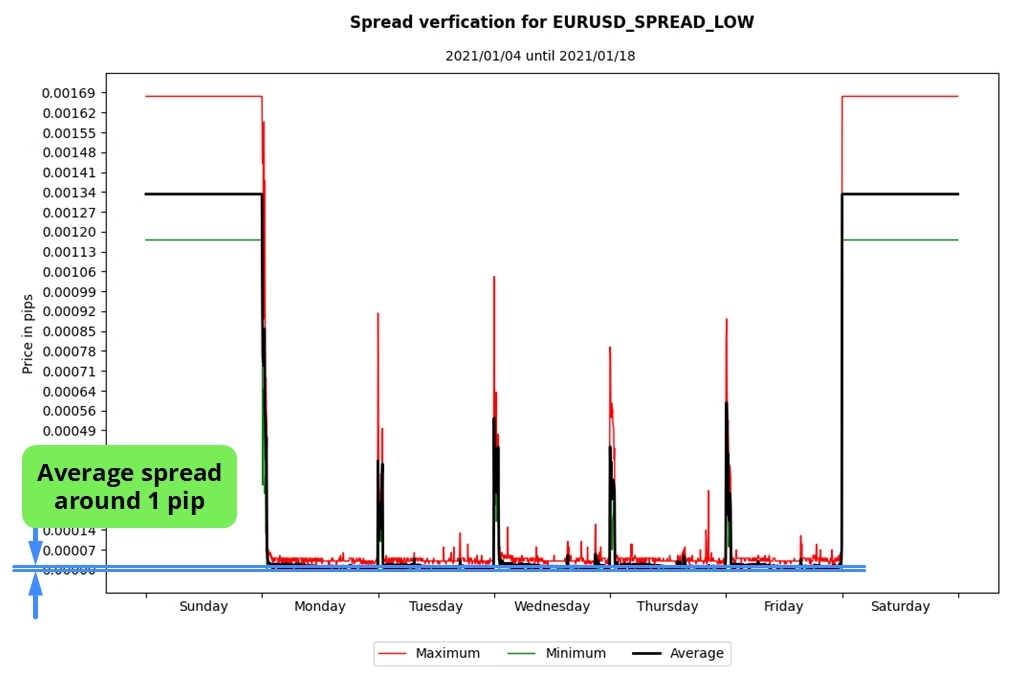
ملف تعريف السبريد المنخفض
مخطط توضيحي لملف تعريف السبريد المنخفض، يمثل سبريدات ضيقة جداً نموذجية لحسابات السبريد الخام.
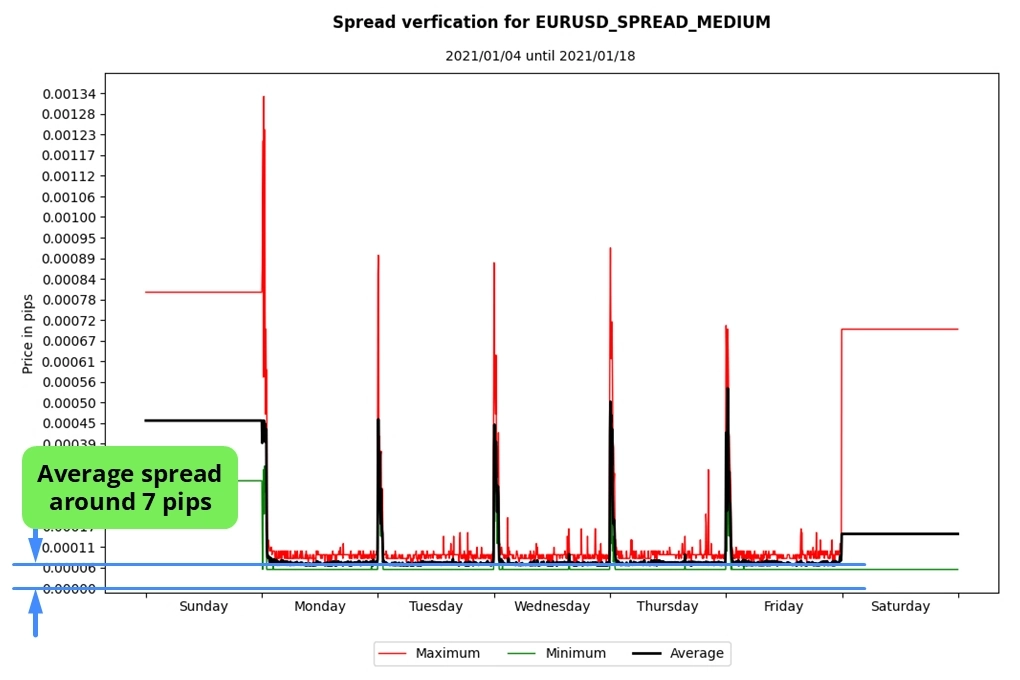
ملف تعريف السبريد المتوسط
مخطط توضيحي لملف تعريف السبريد المتوسط، يمثل متوسط ظروف السوق في الحسابات القياسية.
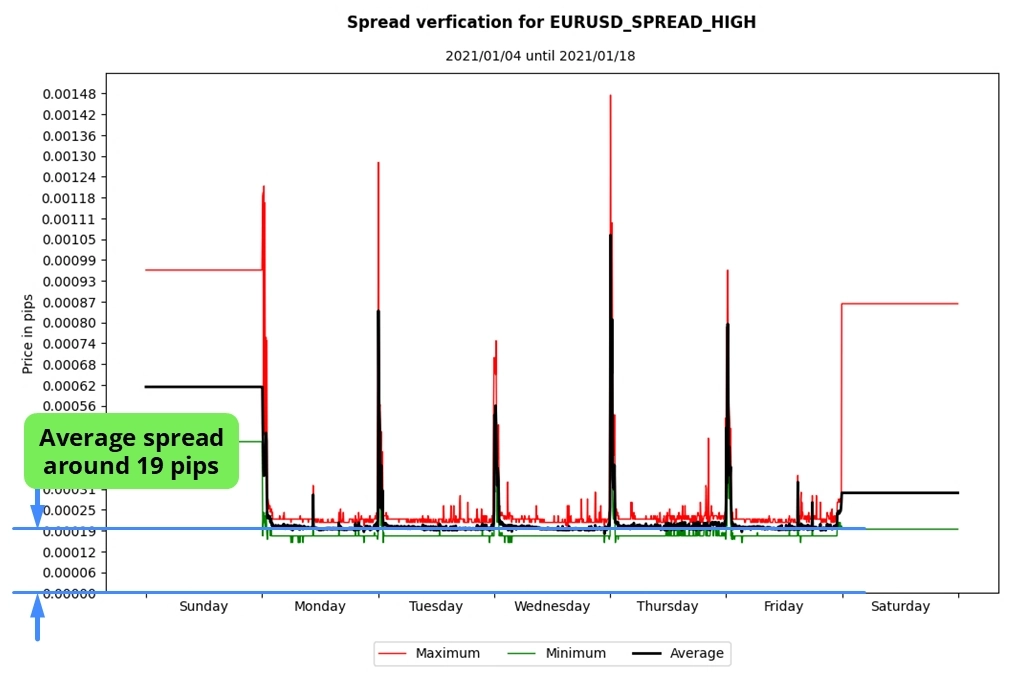
ملف تعريف السبريد المرتفع
مخطط توضيحي لملف تعريف السبريد المرتفع، يمثل السبريدات الأوسع الموجودة في حسابات التجزئة القياسية.
المنطقة الزمنية
جميع بيانات التيك مضبوطة على UTC+02:00 وتشمل التوقيت الصيفي (DST).