

Stop Loss Manager
دليل المستخدم التفصيلي
البدء السريع
INFO
لا يستغرق اتباع دليل البدء السريع هذا سوى 5 إلى 10 دقائق.
التنزيل
يمكنك تنزيل Stop Loss Manager من هنا. يُسلَّم البرنامج في ملف ZIP واحد يُثبَّت في كل من MetaTrader 4 و MetaTrader 5.
التثبيت
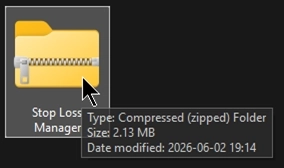
بعد اكتمال التنزيل، ستحصل على ملف ZIP باسم Stop Loss Manager. انتقل إلى مجلد التنزيلات وافتح الملف لعرض محتوياته.
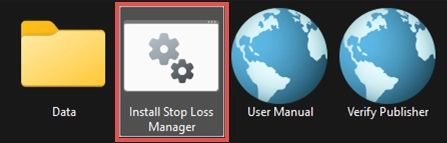
داخل الأرشيف، شغّل برنامج النصي Install Stop Loss Manager لبدء التثبيت.
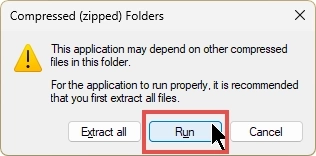
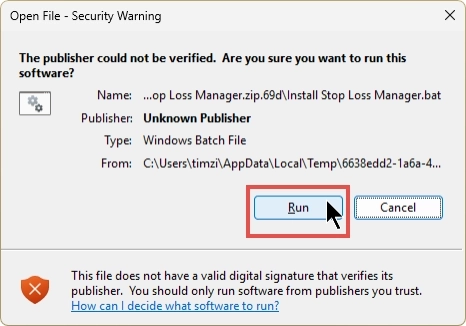
عند تشغيل المثبّت مباشرةً من داخل ملف ZIP، يعرض Windows إشعار Compressed (zipped) Folders. ما عليك سوى النقر على Run للمتابعة كما هو موضح أدناه. يمكنك أيضاً استخراج جميع الملفات مسبقاً ثم تشغيل Install Stop Loss Manager من المجلد المستخرج. قد تبدو هذه الخطوة مختلفةً بعض الشيء إذا فتحت الأرشيف باستخدام أداة خارجية مثل WinZip أو WinRAR.
نظراً لأن برنامج التثبيت غير موقَّع رقمياً، يعرض Windows تحذير Open File - Security Warning الذي يُدرج الناشر بوصفه Unknown Publisher. هذا أمر متوقع، لذا انقر على Run للمتابعة. إذا أردت فحص الملف مسبقاً، استخدم اختصار Verify Publisher المضمَّن في الأرشيف.
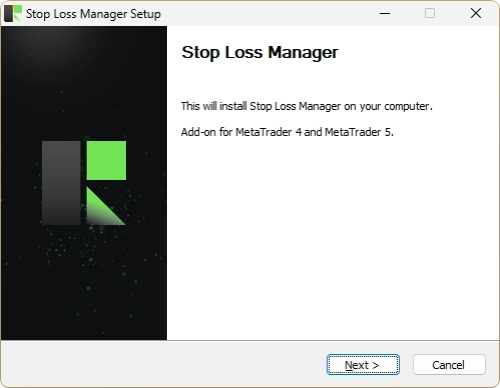
بعد ذلك يفتح معالج Stop Loss Manager Setup ويثبّت الإضافة لكل من MetaTrader 4 و MetaTrader 5. انقر على Next واتبع الخطوات التي تظهر على الشاشة لإتمام التثبيت.
INFO
يثبّت برنامج الإعداد Stop Loss Manager في كل نسخة من MetaTrader 4 و MetaTrader 5 موجودة على جهاز الكمبيوتر الخاص بك. إذا أضفت نسخة MetaTrader جديدة لاحقاً، ما عليك سوى تشغيل التثبيت مرةً أخرى لإضافة Stop Loss Manager إلى تلك النسخة الجديدة.
لا تحتاج إلى تحديث Stop Loss Manager يدوياً. كلما توفرت نسخة جديدة، يُنبِّهك Stop Loss Manager مباشرةً في واجهة المستخدم ويطلب موافقتك قبل تثبيتها. لا يجري أي تحديث في الخلفية دون موافقتك. عند قبولك، يُطبِّق Stop Loss Manager التحديث ويُعيد التحميل بنظافة لتسري النسخة الجديدة. ويمكنك أيضاً الرفض في الوقت الحالي والاستمرار بنسختك الحالية؛ وسيطلب منك Stop Loss Manager الموافقة مجدداً في المرة القادمة.
بدء تشغيل التطبيق
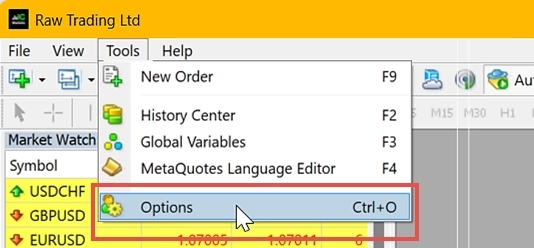
بما أن المنتج يتفاعل مع خادم خلفي، ستحتاج إلى ضبط بعض الإعدادات في MetaTrader الخاص بك. يرجى فتح MetaTrader والانتقال إلى قائمة Options.
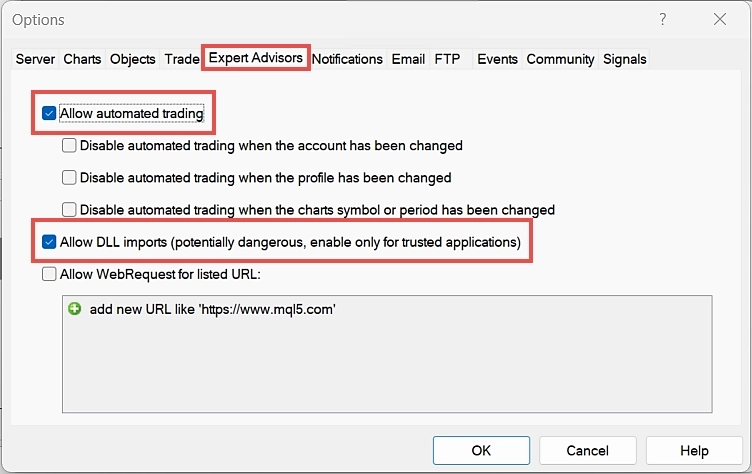
بعد ذلك، انتقل إلى تبويب Expert Advisors وضع علامة في خانتي Allow automated trading و Allow DLL imports.
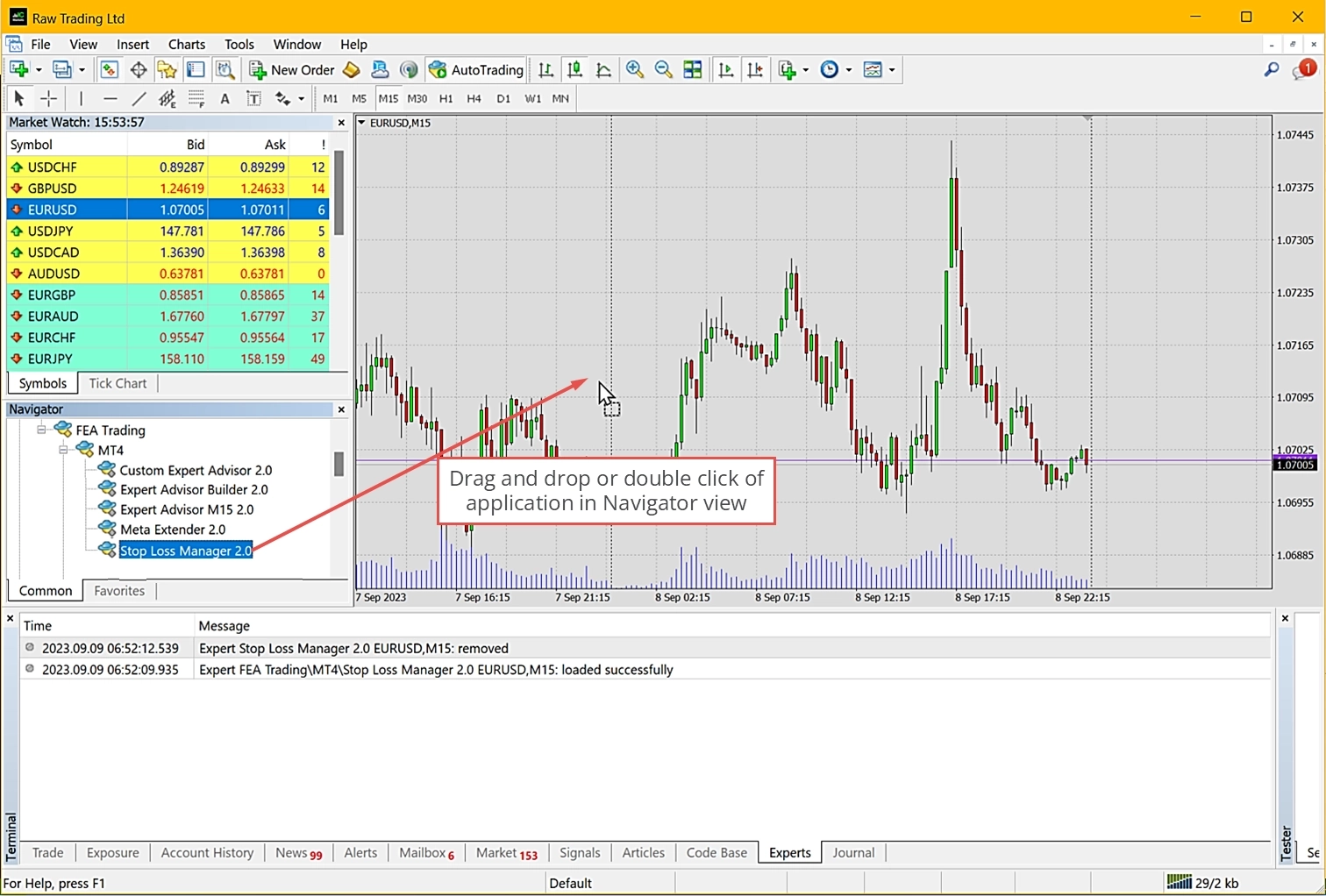
يمكنك العثور على Stop Loss Manager في عرض Navigator ضمن Expert Advisors. إذا لم يكن التطبيق مدرجاً بعد، انقر بزر الماوس الأيمن في أي مكان داخل Navigator واختر Refresh لتحديث العرض. لتشغيل التطبيق، انقر نقراً مزدوجاً عليه أو اسحبه وأفلته على أحد المخططات في عرض المخططات.
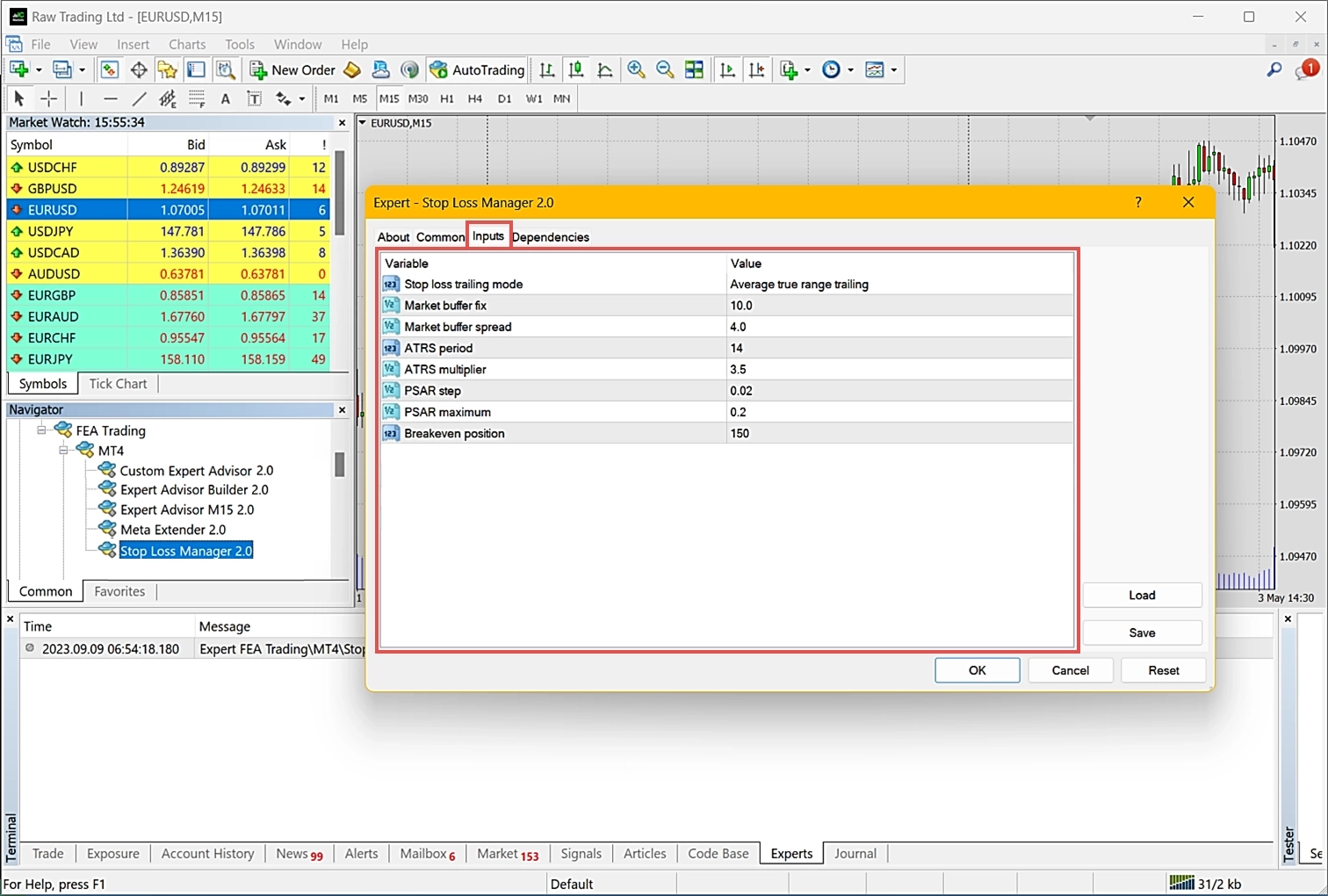
تظهر لوحة ترحيبية في كل مرة تبدأ فيها تشغيل Stop Loss Manager. تتيح لك هذه اللوحة التحقق من رقم الإصدار وضبط معاملات الإدخال. إذا أردت تعديل الإعدادات الافتراضية، افتح تبويب Inputs. يبدأ Stop Loss Manager بطريقة التتبع average true range افتراضياً. تعمل هذه الطريقة على ضبط وقف الخسارة استناداً إلى تقلبات السوق على المدى القصير الأخير. في كثير من الحالات، تُنتج الإعدادات الافتراضية نتائج قوية لتتبع وقف الخسارة. إذا أردت تغيير طريقة التتبع أو معاملات محددة لها، يرجى الرجوع إلى فصل ضبط الإدخالات لفهم كل وضع تتبع وكيفية تعديله.
يعمل Stop Loss Manager الآن على المخطط الذي فتحته. يجب الإبقاء على الإطار الزمني الذي بدأت فيه تشغيل Stop Loss Manager. إذا أردت تغيير الإطار الزمني، ضع في الاعتبار أن ذلك قد يؤثر في خصائص وقف الخسارة.
التداول كالمعتاد
الآن، دعنا نضع Stop Loss Manager في العمل. يمكنك فتح أمر كما تفعل عادةً. بدلاً من تحديد وقف خسارة ابتدائي بنفسك، يمكنك الاعتماد على Stop Loss Manager لتحديد وقف خسارة ابتدائي مناسب استناداً إلى ظروف السوق الحالية. أنت حر في اختيار أي نوع من التنفيذ. بالنسبة لأوامر السوق، يُحدَّد وقف الخسارة الابتدائي فور فتح الصفقة. أما أوامر الانتظار، فيُحدَّد وقف الخسارة الابتدائي عند تنفيذ الأمر.
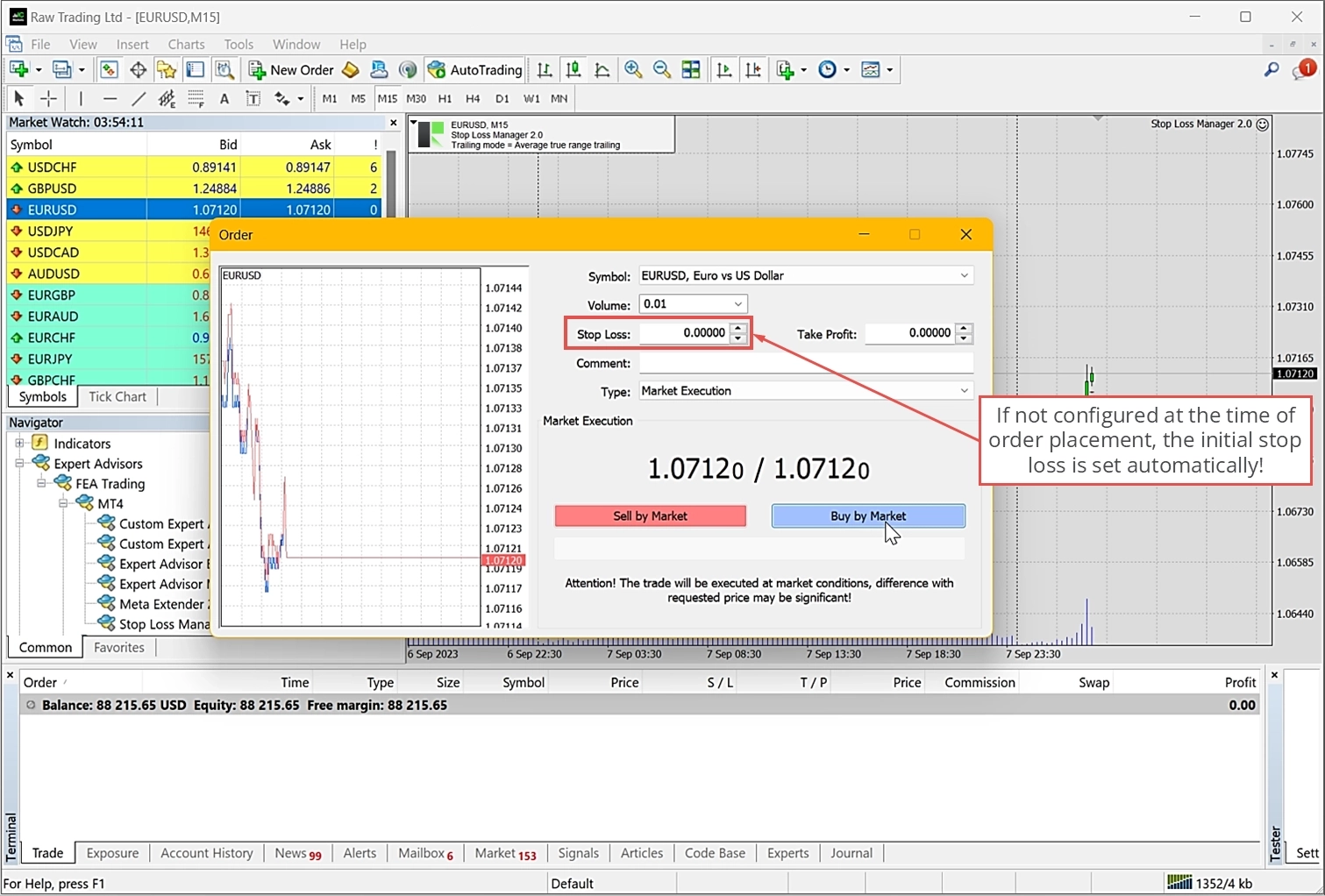
ستلاحظ أنه يُحدَّد وقف خسارة ابتدائي تلقائياً. علاوةً على ذلك، يُدار وقف الخسارة الآن بصورة مستقلة استناداً إلى طريقة التتبع المختارة. تظهر هذه الطريقة في حقل الحالة في أعلى يمين المخطط. يُعرض كل تعديل لوقف الخسارة على المخطط، مما يتيح لك تتبع عملية التتبع والتحقق منها طوال دورة حياة الصفقة.
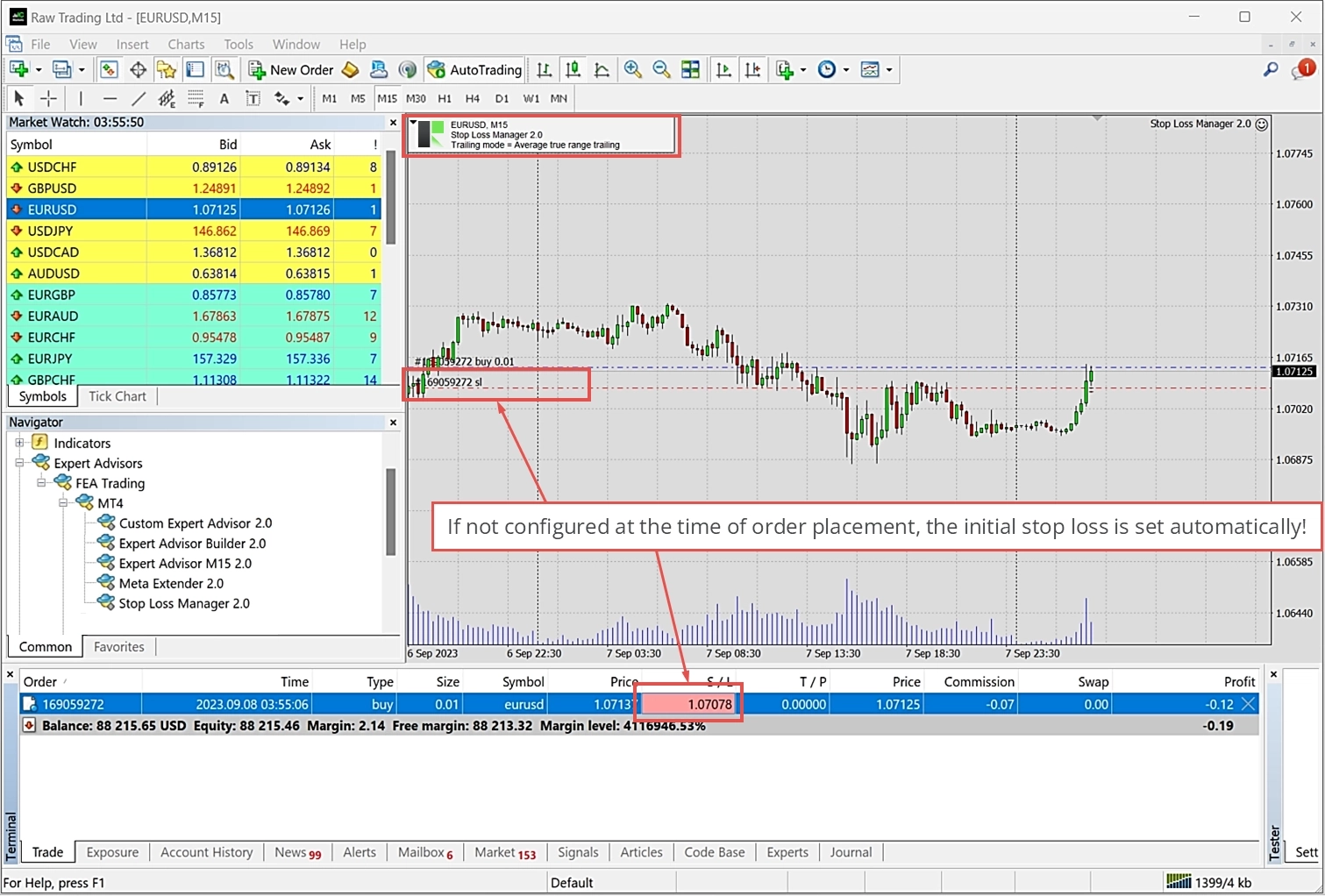
أنت تستخدم Stop Loss Manager الآن. باختصار، يتيح لك البرنامج الابتعاد عن جهاز الكمبيوتر دون الحاجة إلى مراقبة أوقات الخسارة وضبطها يدوياً.
الأوامر المتأثرة
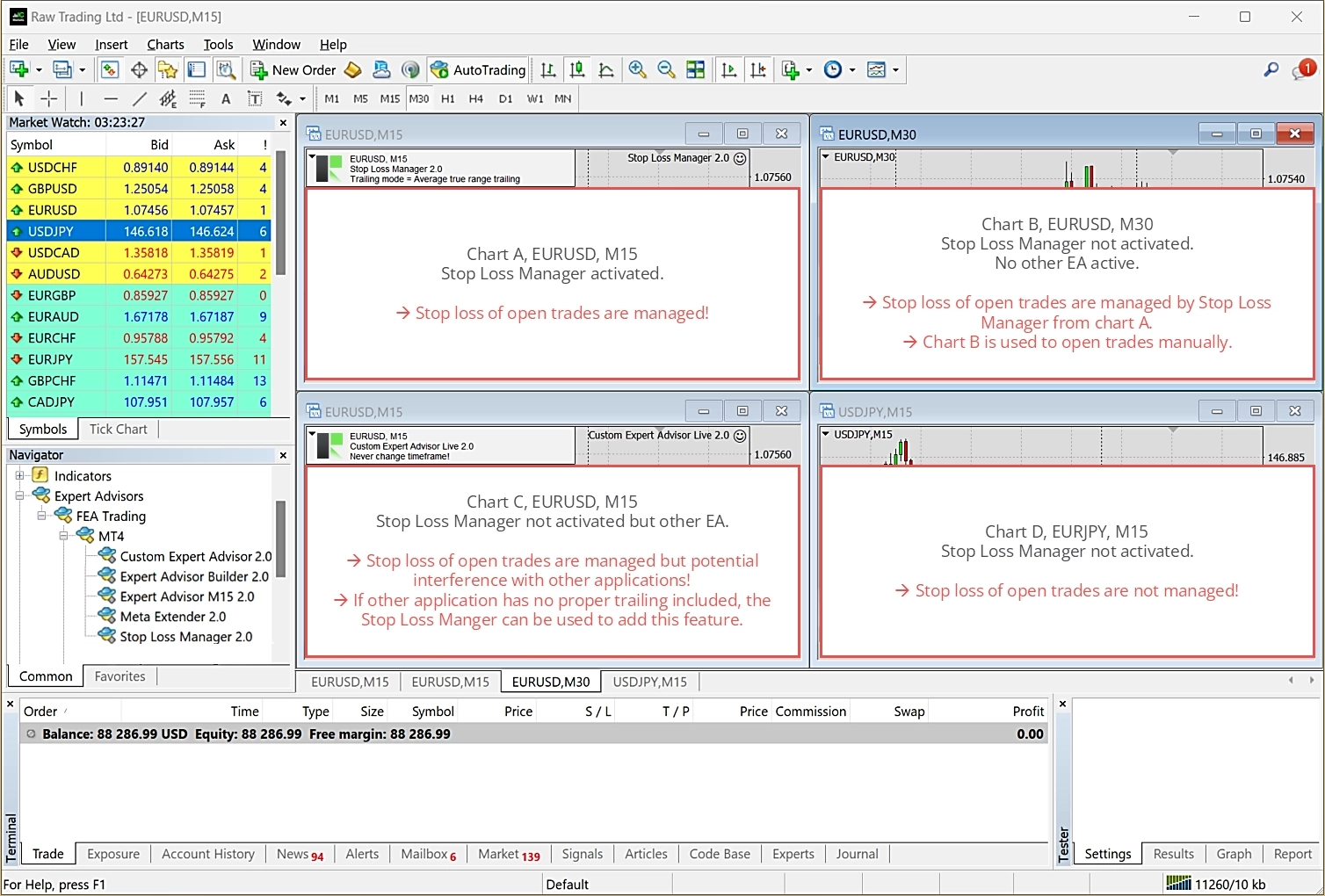
ماذا سيحدث لو قمت بتنشيط عدة نسخ من Stop Loss Manager على الرمز نفسه ولكن على مخططات مختلفة؟ يُنصح بشدة بعدم القيام بذلك، إذ صُمِّم Stop Loss Manager لإدارة سلوك تتبع وقف الخسارة لرمز محدد بصرف النظر عن المخطط الذي فُتحت فيه الصفقة. إذا كنت مهتماً باستخدام طرق تتبع متعددة للرمز نفسه في آنٍ واحد، فقد يستحق Meta Extender النظر فيه. يتيح لك هذا التطبيق المتقدم إدارة طريقة التتبع وتعديلها بشكل فردي لكل صفقة. على سبيل المثال، يمكن أن تبدأ صفقة بتتبع نقطة التعادل، وإذا دخلت الصفقة في منطقة ربح عالية، يمكن أن تنتقل طريقة التتبع تلقائياً إلى تتبع قائم على average true range.
يقوم مبدأ Stop Loss Manager على إدارة جميع الصفقات لكل رمز، مما يُتيح حالة استخدام مريحة. يمكنك تنشيط Stop Loss Manager على جهاز الكمبيوتر الخاص بك وفتح صفقات باستخدام MetaTrader على الهاتف المحمول من أي مكان. إذا كان ذلك في حساب التداول نفسه، فإن Stop Loss Manager الذي يعمل على جهاز الكمبيوتر الخاص بك سيُدير أيضاً الصفقة التي فُتحت عبر هاتفك.
هل تحتاج إلى مساعدة؟
تجد إجابات لكثير من الأسئلة الشائعة في قسم الأسئلة المتكررة الخاص بـ Stop Loss Manager. يرجى الاطلاع عليه أولاً. إذا كنت لا تزال بحاجة إلى مساعدة، يسعد فريق الدعم لدينا بمساعدتك.
إلغاء التثبيت
توجد عدة طرق شائعة لإلغاء تثبيت Stop Loss Manager على Windows:
عبر قائمة Start (الأسهل): افتح قائمة Start في Windows، وابحث عن Stop Loss Manager في قائمة التطبيقات، انقر عليه بزر الماوس الأيمن، واختر Uninstall.
عبر إعدادات Windows: انتقل إلى Settings > Apps > Installed apps (في Windows 11) أو Settings > Apps > Apps & features (في Windows 10)، وابحث عن Stop Loss Manager في القائمة، انقر عليه، واختر Uninstall.
عبر لوحة التحكم: افتح لوحة التحكم وانتقل إلى Programs > Programs and Features، وحدد Stop Loss Manager من القائمة، ثم انقر على Uninstall.
أي من هذه الطرق ستُزيل التطبيق بالكامل من جهاز الكمبيوتر الخاص بك.
ضبط الإدخالات
يقدم هذا الفصل شرحاً تفصيلياً لكل معامل إدخال، مما يمكّنك من تهيئة Stop Loss Manager وفق احتياجاتك. ستجد جميع هذه الإعدادات في تبويب Inputs الذي يظهر عند تشغيل Stop Loss Manager على مخطط. قد تبدو هذه النافذة مختلفةً في MetaTrader 5، لكنها تعمل بالطريقة نفسها من حيث المبدأ.
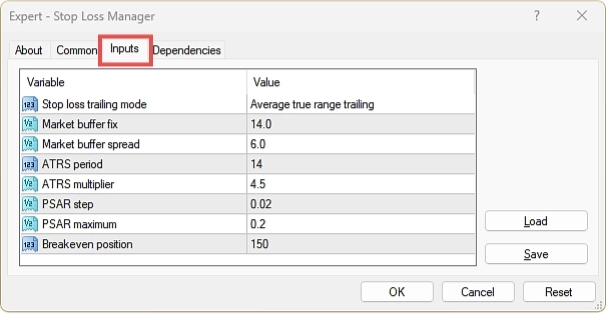
في حين أن معاملات الإدخال الافتراضية توفر تهيئةً قابلةً للتطبيق عالمياً، يُوصى بتكييف Stop Loss Manager مع الرمز والإطار الزمني المحددين اللذين تعمل بهما. قد يبدو هذا مرهقاً في البداية للمبتدئين، لكن اطمئن: المعاملات الافتراضية نقطة انطلاق ممتازة. على الأرجح، سيحتاج المتداولون المحترفون والمتقدمون إلى إعدادات إدخال مختلفة لرموز وأطر زمنية أخرى.
لتحسين معاملات الإدخال، فكّر في استخدام محاكي الاستراتيجيات في MetaTrader. عندما يعمل Stop Loss Manager في المحاكي، يفتح تلقائياً صفقة شراء وصفقة بيع كل 50 شمعة. يتيح لك ذلك رؤية كيفية تتبع إعداداتك لوقف الخسارة عبر عينات صفقات عديدة وظروف سوق مختلفة، مما يُسهّل الضبط الدقيق للمعاملات قبل التداول الحقيقي.
وضع التتبع المحدد
يتيح لك معامل الإدخال Stop loss trailing mode التبديل بين أوضاع التتبع الخمسة المتاحة. يرجى ملاحظة أنه لا يمكن تغيير طريقة التتبع لـ Stop Loss Manager النشط أثناء تشغيله. للقيام بذلك، يجب إعادة تشغيل Stop Loss Manager وإعادة تهيئته.
| متغير الإدخال في MetaTrader | القيمة الافتراضية | تعليق |
|---|---|---|
| Stop loss trailing mode | Average true range trailing | الخيارات: -Market trailing -Average true range trailing -Parabolic SAR trailing -Fix distance trailing -Breakeven trailing |
معاملات تتبع السوق
لا يعتمد تتبع السوق على خوارزميات معقدة. بدلاً من ذلك، يستخدم أسعار الفتح والإغلاق للشموع السابقة مع الفارق السعري (spread) لحساب حركاته. المتغير الوحيد القابل للتعديل هو منطقة عازلة تُضاف إلى مسافة وقف الخسارة. يمكن حساب هذه المنطقة العازلة بمعاملين: قيمة ثابتة تُقاس بالنقاط (Market buffer fix) أو قيمة ديناميكية تستند إلى الفارق السعري الحالي (Market buffer fix).
| متغير الإدخال في MetaTrader | القيمة الافتراضية | تعليق |
|---|---|---|
| Market buffer fix | 10.0 | يُدخل هذا المعامل منطقةً عازلةً في مستوى وقف الخسارة، تُحسب استناداً إلى عدد ثابت من النقاط. لا يمكن أن تكون قيمة الإدخال أصغر من الصفر أو تساويه. |
| Market buffer fix | 4.0 | يُدخل هذا المعامل منطقةً عازلةً في مستوى وقف الخسارة، تُحسب استناداً إلى عدد ثابت من النقاط. غير أنه في هذه الحالة يضرب المعامل قيمة الفارق السعري الحالي، وحاصل هذا الضرب هو مستوى المنطقة العازلة. لا يمكن أن تكون قيمة الإدخال أصغر من الصفر أو تساويه. |
يُعدّ الخيار الديناميكي القائم على الفارق السعري مفيداً لتجنب إغلاق الصفقات خلال ساعات الليل. على سبيل المثال، يُعدّ سعر الطلب (ask) ضرورياً لصفقات الشراء لتحديد وقت إغلاق الصفقة. غير أن مستوى وقف الخسارة قد يقترب أكثر مما ينبغي إذا كان الفارق السعري كبيراً جداً. لذلك، خلال مراحل الفارق السعري الكبير، يمكن لنوع تتبع السوق تكييف المنطقة العازلة تلقائياً للتفاعل بشكل أفضل في المراحل المتقلبة أو خلال ساعات الليل.
يمكن مشاهدة تأثير معامل الإدخال في المخطط أدناه.
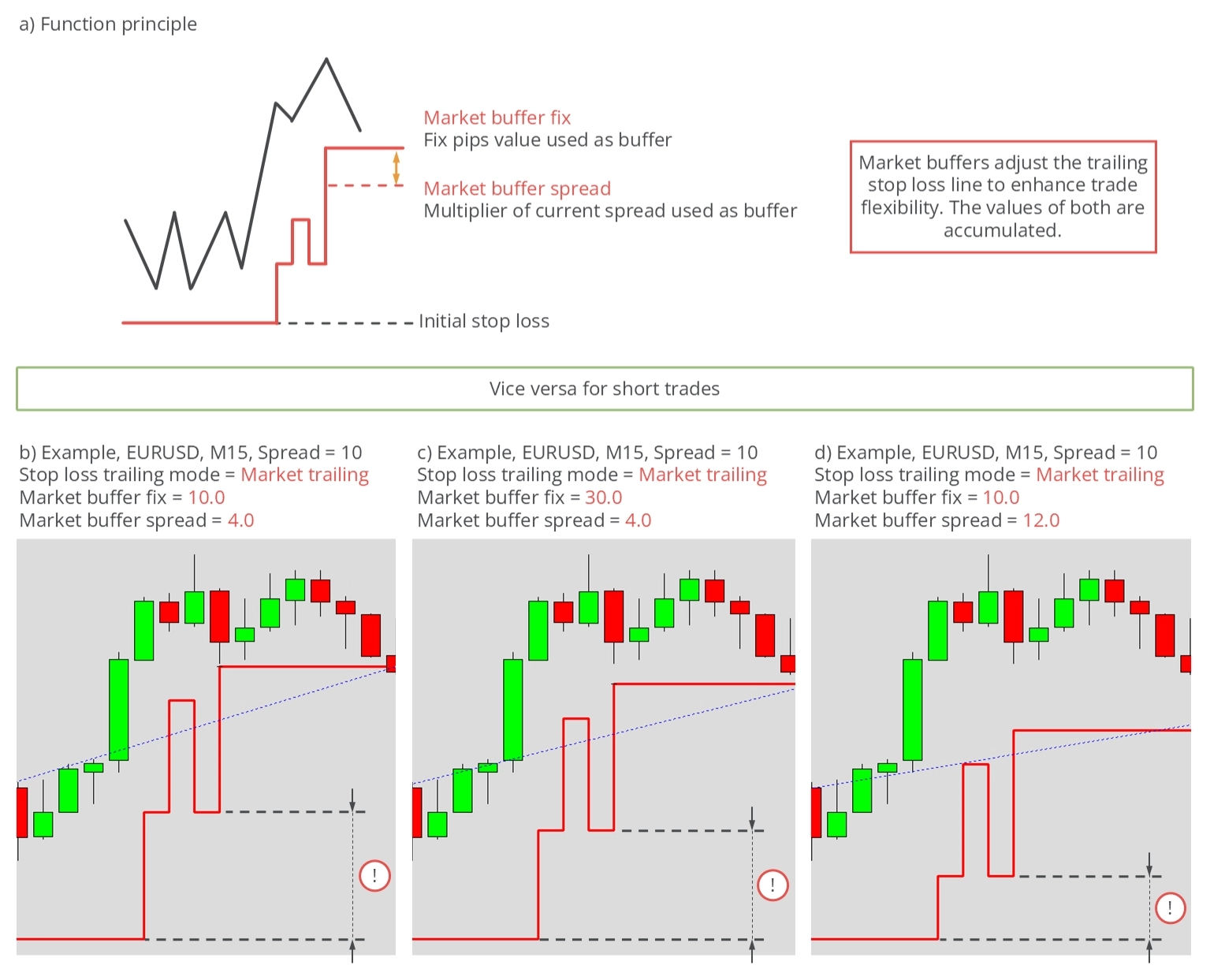
كما يتضح، يُبعد كلا المعاملين خط وقف الخسارة عن السعر الفعلي. يمكن دمج نوعي المنطقة العازلة بحرية. عند استخدامهما معاً، تُجمع قيمتاهما.
معاملات تتبع المدى الحقيقي المتوسط
تستخدم طريقة تتبع المدى الحقيقي المتوسط (ATR) مؤشر ATR لحساب مسافة وقف الخسارة. هذا المؤشر الشائع الاستخدام أداة قياسية لتقييم تقلبات مخطط الأسعار.
| متغير الإدخال في MetaTrader | القيمة الافتراضية | تعليق |
|---|---|---|
| ATRS period | 14 | لا يمكن أن تكون قيمة الإدخال أصغر من الصفر أو تساويه. |
| ATRS multiplier | 3.5 | لا يمكن أن تكون قيمة الإدخال أصغر من الصفر أو تساويه. |
تشمل معاملات ضبط طريقة تتبع ATR: ATRS period وهو الفترة المستخدمة لحساب مؤشر ATR، وATRS multiplier. عادةً ما تكون قيمة ATR الخام صغيرةً جداً لاستخدامها كمسافة لوقف الخسارة المتتبع، لذا يشيع ضرب قيمة المؤشر الخام بمضاعف. القيمة الشائعة للمضاعف هي 3.5.
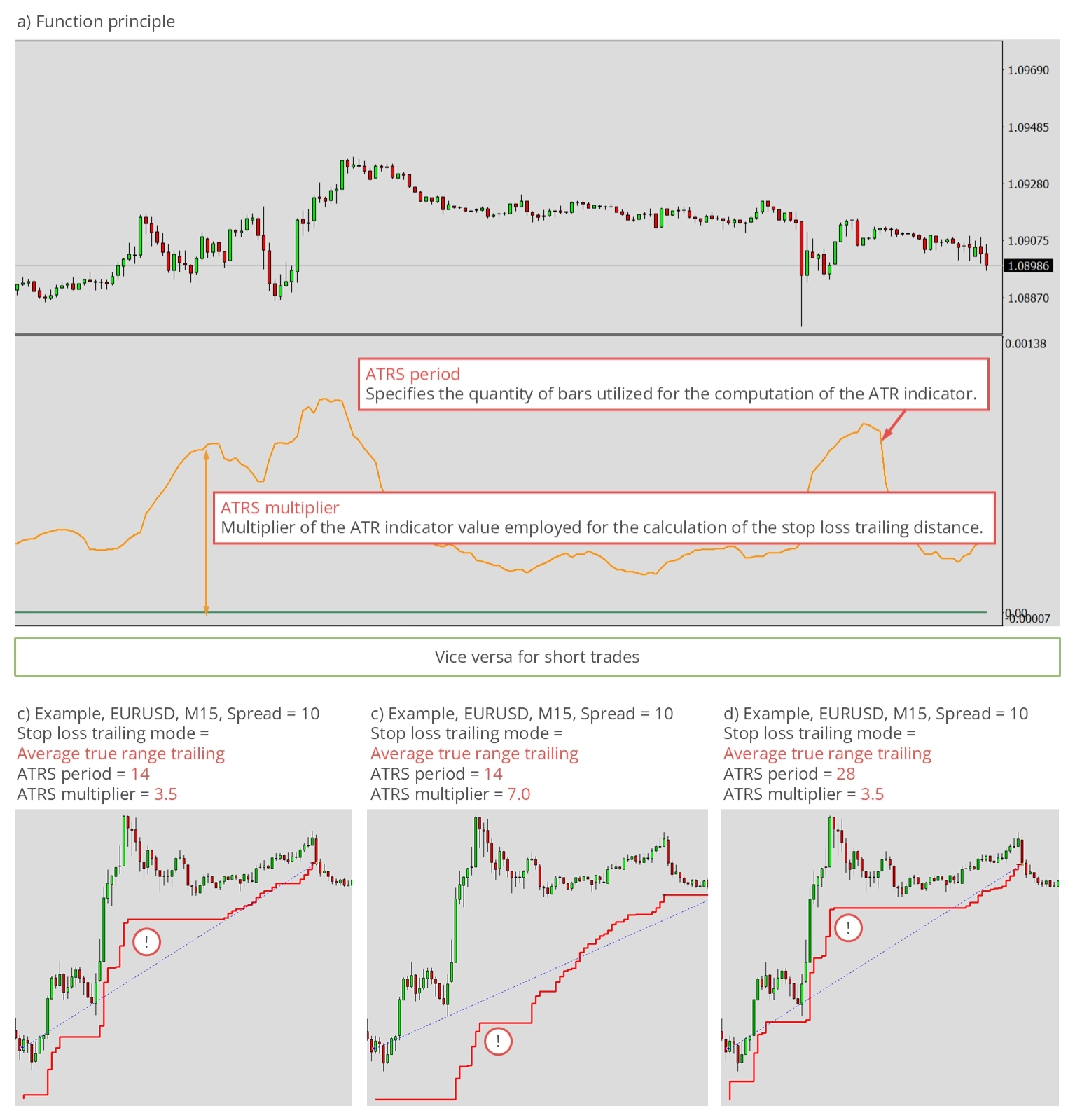
بتعديل هذه القيم، يمكن لطريقة تتبع ATR الاستجابة بشكل أكبر للسعر الحالي.
معاملات تتبع Parabolic SAR
تستخدم أوقات الخسارة المتتبعة بطريقة Parabolic SAR (PSAR) مؤشر PSAR، وهو أداة قياسية أخرى في التداول الحديث. يأتي هذا المؤشر عادةً مع معاملَي إدخال.
| متغير الإدخال في MetaTrader | القيمة الافتراضية | تعليق |
|---|---|---|
| PSAR step | 0.02 | لا يمكن أن تكون قيمة الإدخال أصغر من الصفر أو تساويه. |
| PSAR maximum | 0.2 | لا يمكن أن تكون قيمة الإدخال أصغر من الصفر أو تساويه. |
تُؤخذ قيمة PSAR مباشرةً كوقف للخسارة، وذلك في حال استيفاء قيمة PSAR الحالية للشروط المطلوبة. نظراً لأن PSAR يُرسم فوق مخطط الأسعار أو تحته، توجد مراحل لا يُخرج فيها PSAR قيماً صالحة لأوقات الخسارة. يحدث هذا عادةً عند فتح صفقة. عندما يتغير خصائص PSAR، قد يتحرك وقف الخسارة بسرعة للاقتراب من السعر. تُستخدم معاملات الإدخال PSAR step وPSAR maximum لضبط هذه الحركة.
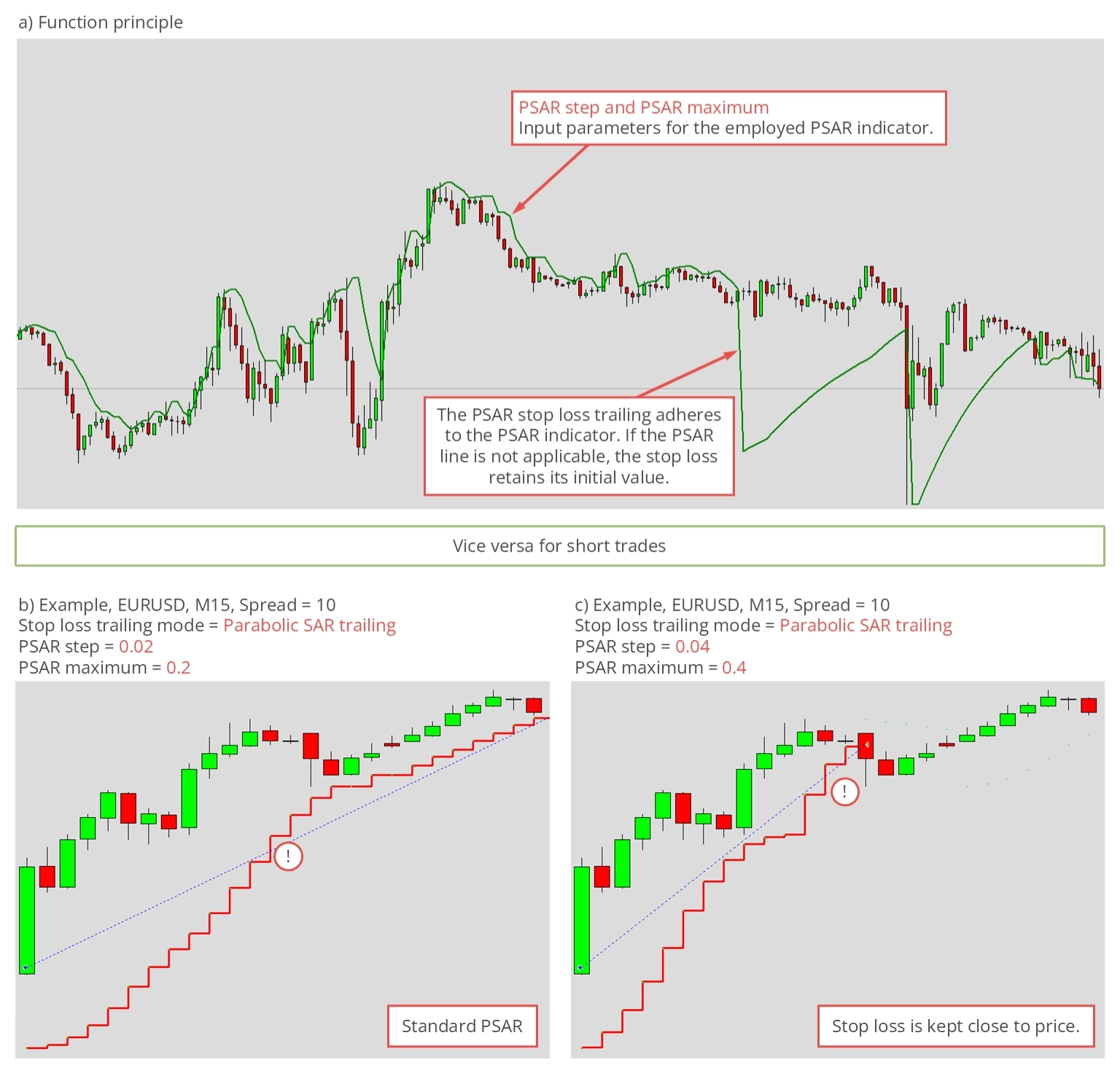
كلما انخفضت هذه القيم، كان تحرك وقف الخسارة نحو قيمة السعر أكثر هدوءاً وسلاسةً.
معاملات تتبع نقطة التعادل
تعني طريقة تتبع نقطة التعادل أن قيمة وقف الخسارة لا تُعدَّل سوى مرة واحدة عند سعر محدد. يضمن ذلك تأمين الأرباح المحققة. يحدث القفز المفاجئ لوقف الخسارة عندما تكون الصفقة في منطقة ربح محترمة ولا يُتوقع أن تغير الصفقة اتجاهها.
| متغير الإدخال في MetaTrader | القيمة الافتراضية | تعليق |
|---|---|---|
| Breakeven position | 150 | لا يمكن أن تكون قيمة الإدخال أصغر من الصفر أو تساويه. |
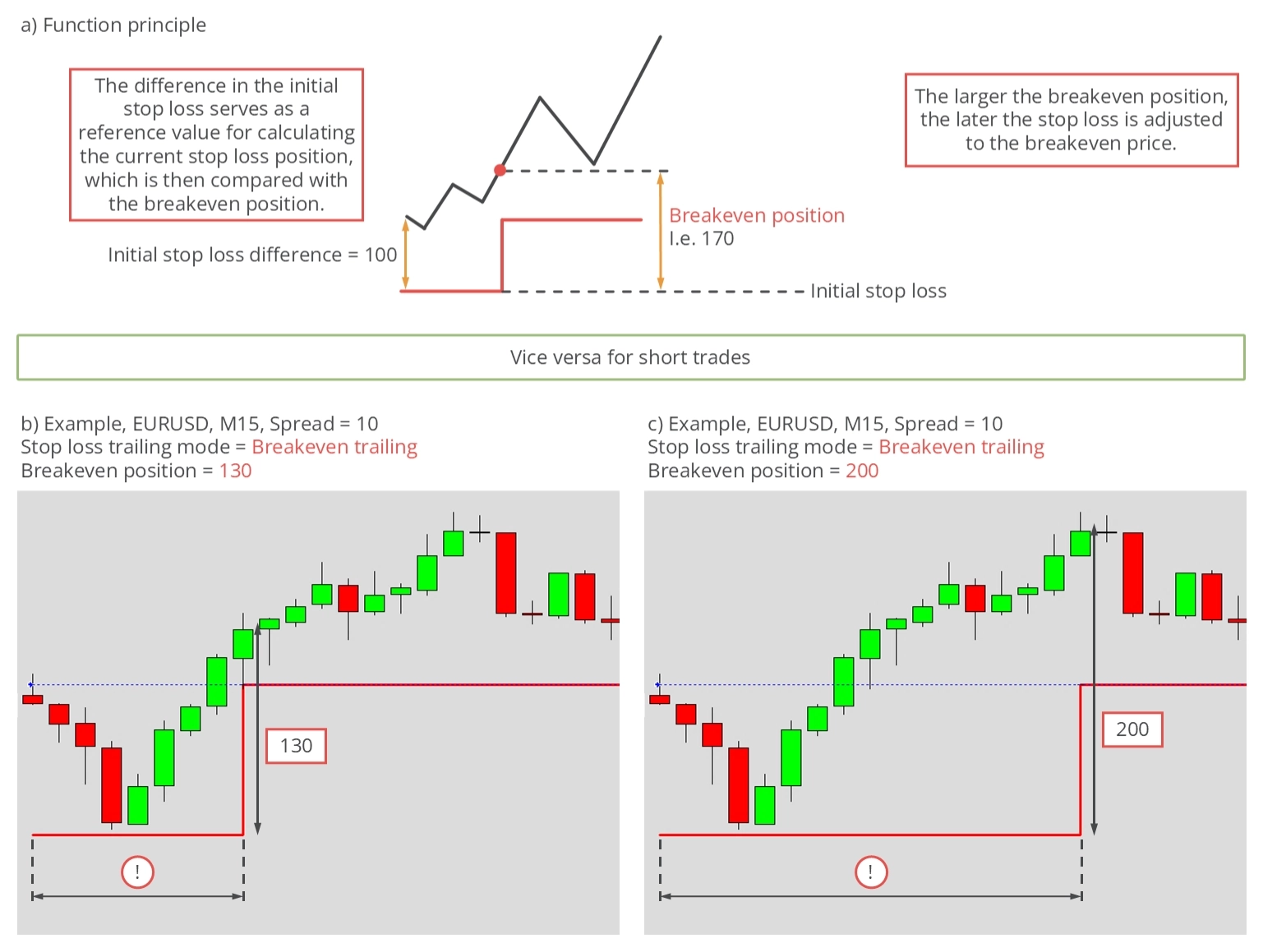
يمكنك استخدام معامل الإدخال Breakeven position لتحديد اللحظة التي سيقع فيها القفز. تمثل المسافة الابتدائية بين سعر الفتح ووقف الخسارة الابتدائي القيمة المرجعية 100. لنفترض أن هذه المسافة كانت 80 نقطة. إذا تم ضبط Breakeven position على 150، فسيقع القفز إلى نقطة التعادل عندما يرتفع السعر 40 نقطة فوق سعر الفتح. كما يتضح في الرسم التوضيحي أدناه، كلما زاد مركز نقطة التعادل، تأخر القفز.
DANGER
يجب استخدام طريقة التتبع هذه فقط مع تحديد هدف ربح، أو تحت إشراف يدوي مستمر مع إغلاق الصفقة يدوياً. نظراً لأن قيمة وقف الخسارة لا تتغير أبداً بعد ذلك، فإن الحد الأقصى للنتيجة سيكون صفر ربح. لا تُدرج الرسوم كالعمولة أو المبادلة في حساب سعر التعادل.
أوضاع التتبع
يمتلك Stop Loss Manager خمس طرق تتبع متمايزة، اختيرت بعناية لشيوعها بين المتداولين ذوي الخبرة. إذا لم تجد السلوك المطلوب بين هذه الطرق، يُوصى بالاطلاع على Meta Extender. يوفر Meta Extender مجموعةً متنوعةً من خيارات التتبع الإضافية، بما في ذلك إمكانية دمج طرق تتبع مختلفة. على سبيل المثال، يمكن لوقف خسارة الصفقة القفز إلى نقطة التعادل ثم الاستمرار بتتبع قائم على average true range.
تُعدّ طرق التتبع الأصلية المدعومة في Stop Loss Manager أدواتٍ قوية للتداول اليدوي. دعنا نشرح بإيجاز كل طريقة تتبع قابلة للاختيار.
تتبع السوق
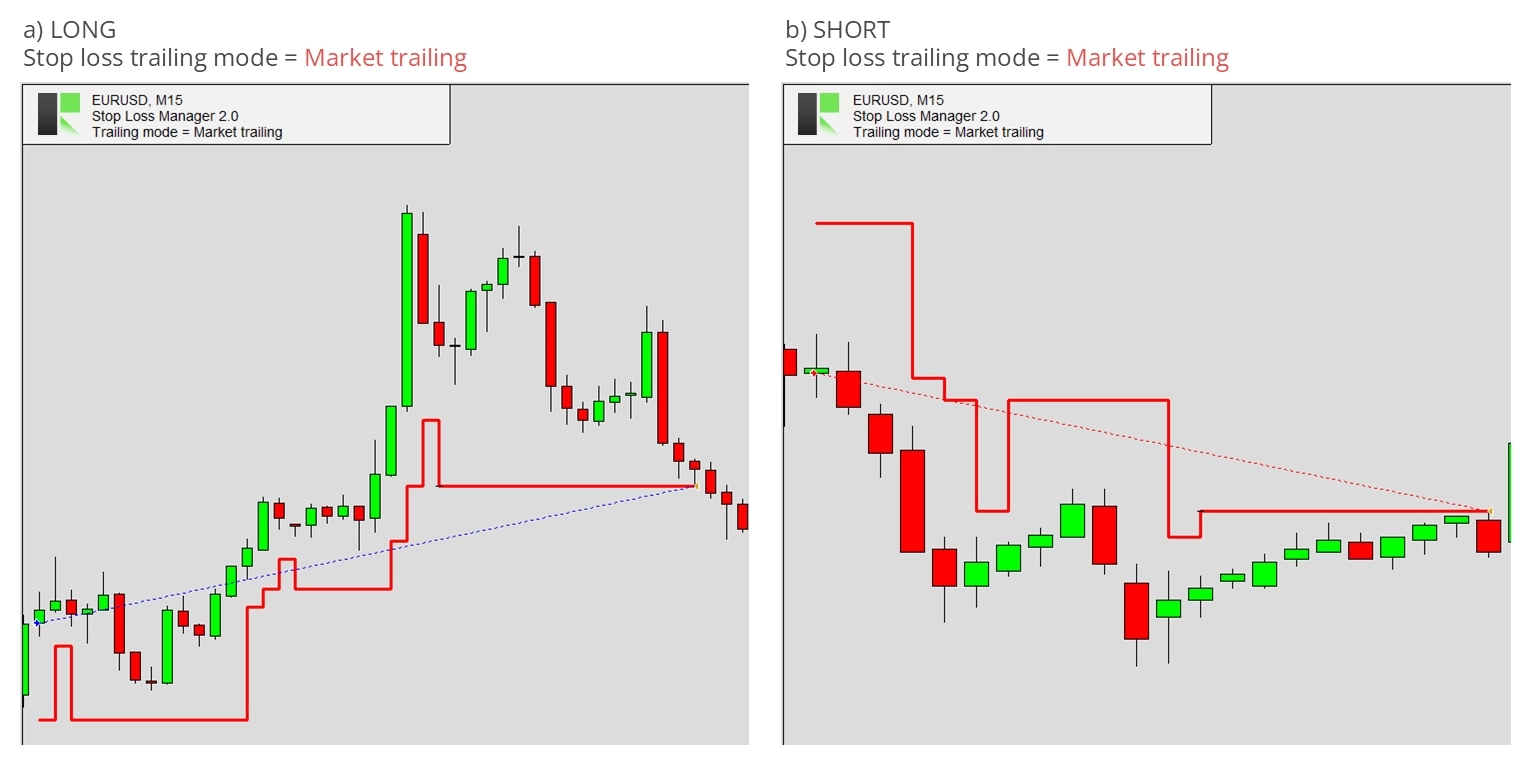
تعتمد هذه الطريقة كلياً على أساليب السوق، أي لا تُستخدم أي خوارزمية. تحدد أسعار الفتح للشموع السابقة ما إذا كان وقف الخسارة مؤهلاً للتقدم نحو السعر الحالي. تمنح هذه الطريقة للصفقة مساحةً للحركة، مما يستوعب التراجعات المعتادة التي تعقب تغيراً حديثاً في الأسعار. يحدث التراجع عند رصد حركة جانبية بعد ارتفاع أو انخفاض مفاجئ في الأسعار. يتسم تتبع السوق بالكفاءة في التداول اليومي والتداول المتأرجح مع أسعاره المتحركة بسرعة. تجدر الإشارة إلى أن مستوى التراجع لا يتجاوز أبداً أوقات الخسارة الابتدائية المحددة عند فتح الصفقة.
فيما يلي بعض الأمثلة التي توضح تطبيق هذه الطريقة.
تتبع المدى الحقيقي المتوسط
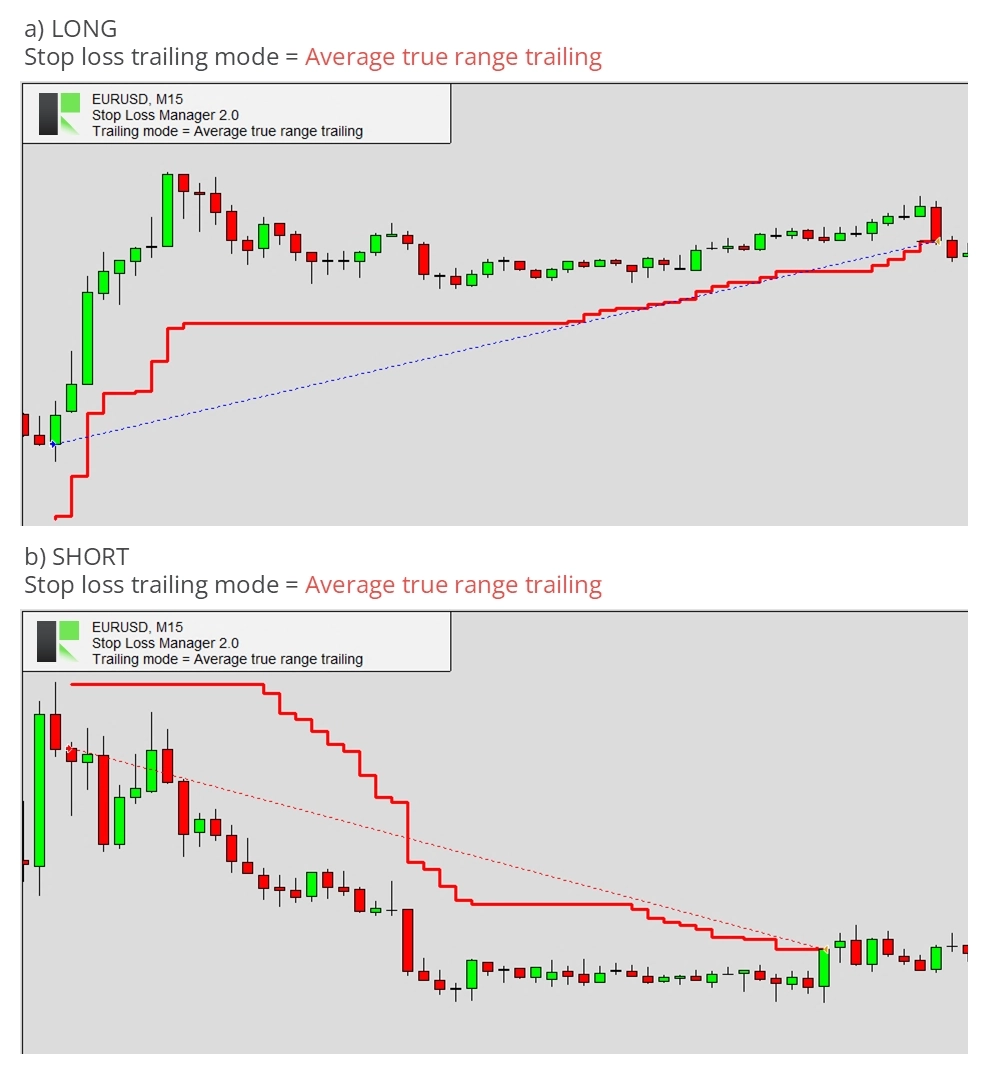
المدى الحقيقي المتوسط (ATR) مقياس للتقلبات يساعد المتداولين على فهم تقلبات تحركات الأسعار في الفترة الأخيرة. تستخدم وقفات الخسارة المتتبعة بـ ATR مؤشر ATR لضبط مستويات وقف الخسارة ديناميكياً استناداً إلى تقلبات السوق. يعني ذلك أن مستوى وقف الخسارة يتحرك مع السعر، لكن في اتجاه الصفقة فحسب. وهي أداة قيّمة لحماية الأرباح والحد من الخسائر في الأسواق المتقلبة. كلما ارتفعت قيمة ATR، ازداد مستوى التقلب وابتعد مستوى وقف الخسارة.
فيما يلي بعض الأمثلة التي توضح تطبيق هذه الطريقة.
تتبع Parabolic SAR
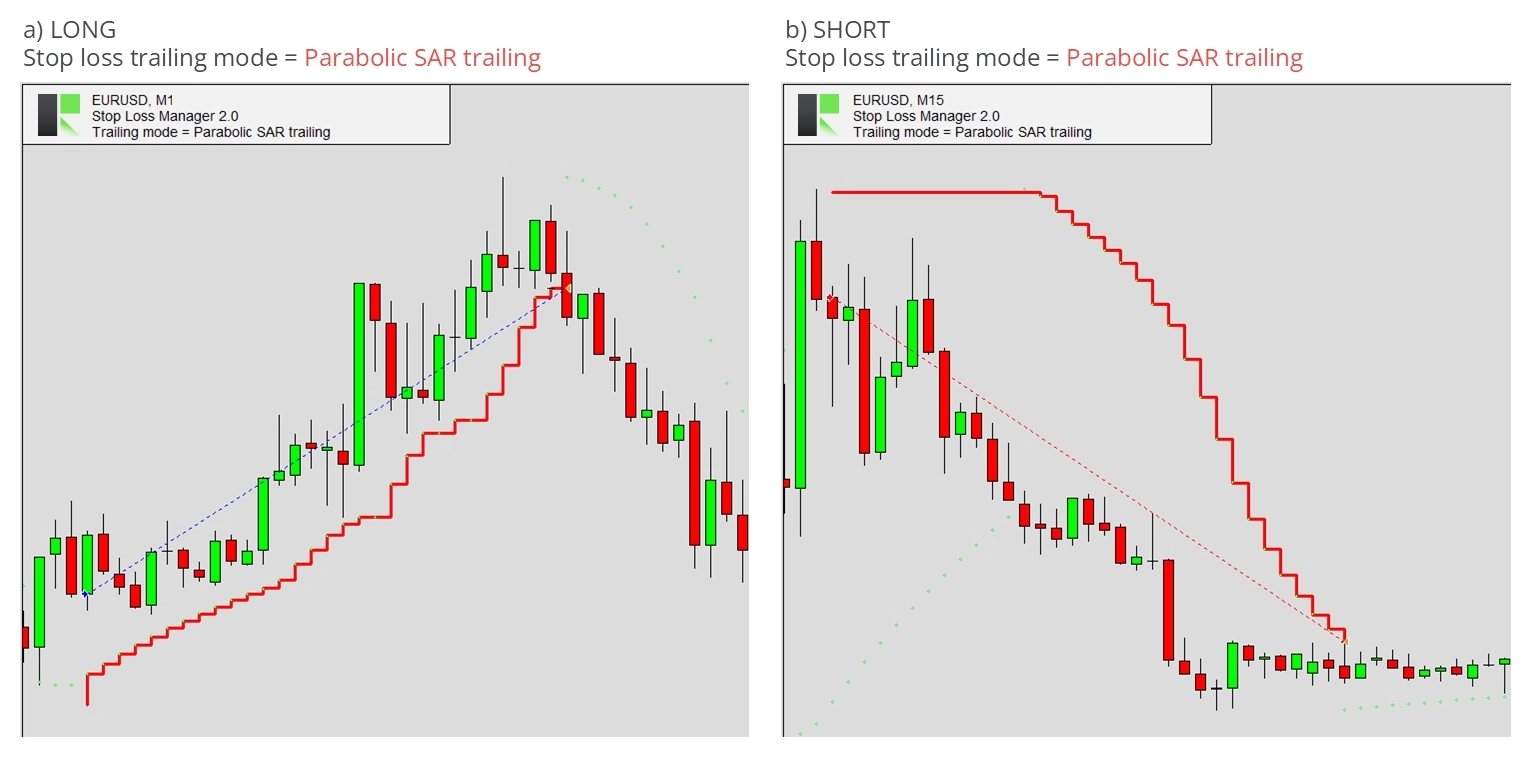
Parabolic SAR مؤشر تقني طوّره J. Wells Wilder. يحدد اتجاه سعر الأصل ويُبرز الانعكاسات المحتملة. يظهر المؤشر، بحسب الاتجاه، كسلسلة من النقاط على المخطط، إما فوق السعر أو تحته. نقطة تحت السعر تدل على اتجاه صاعد، في حين تشير نقطة فوق السعر إلى اتجاه هابط. عندما تنقلب النقاط، فإن ذلك يُشير إلى تغيير محتمل في اتجاه السعر. يجعل ذلك منه أداةً قيّمةً لوضع أوامر وقف الخسارة المتتبعة. كما يُلمح إليه بالمؤشر، قد تكون قيمته في بعض الأحيان فوق أو تحت السعر الحالي، مما قد يُوحي بأن وقف الخسارة لا يتتبع. وبالتالي، قد يبقى مستوى وقف الخسارة الابتدائي ثابتاً لفترة مطوّلة. يحدث هذا في كثير من الأحيان في الأطر الزمنية الأعلى.
فيما يلي بعض الأمثلة التي توضح تطبيق هذه الطريقة.
تتبع المسافة الثابتة
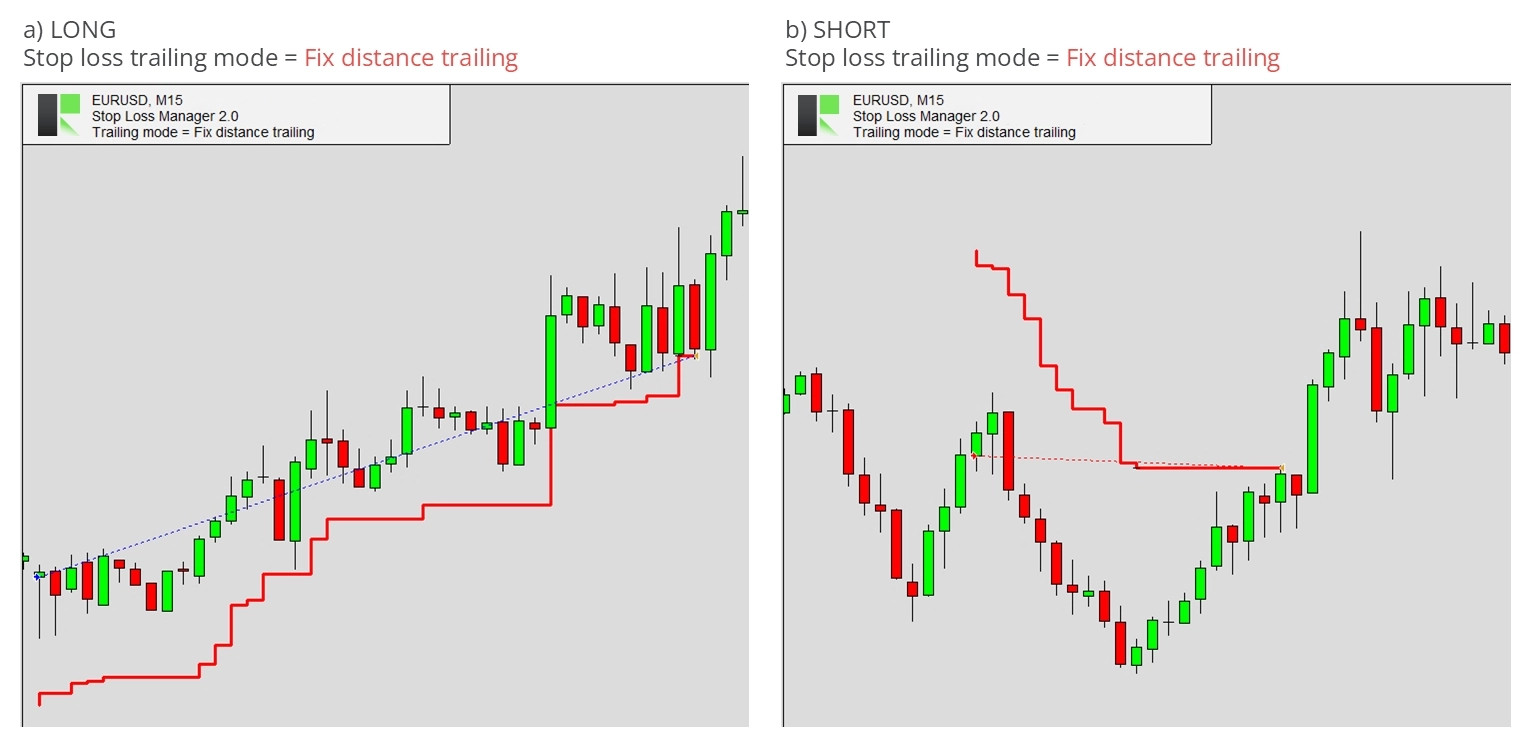
يحافظ هذا النوع من تتبع وقف الخسارة على مسافة ثابتة من سعر السوق الحالي. صُمِّم لتثبيت الأرباح المحتملة والحد من الخسائر. عندما يتحرك السوق في اتجاه مربح، يتحرك وقف الخسارة المتتبع بمسافة ثابتة، محافظاً على بُعد ثابت من السعر الحالي. إذا توقف السوق عن التحرك في الاتجاه المفيد، يُبقي Stop Loss Manager وقف الخسارة عند آخر قيمة مُحددة. تتيح هذه الاستراتيجية للمتداولين حماية أرباحهم مع السماح للسعر بالتذبذب. عند تفعيل طريقة التتبع هذه، يمكن اختيار مسافة وقف الخسارة يدوياً من المخطط أو من تبويب Trade في عرض الطرفية. تُستخدم مسافة وقف الخسارة الجديدة للتتبع المستقبلي في كل مرة تُغيّر فيها وقف الخسارة.
فيما يلي بعض الأمثلة التي توضح تطبيق هذه الطريقة.
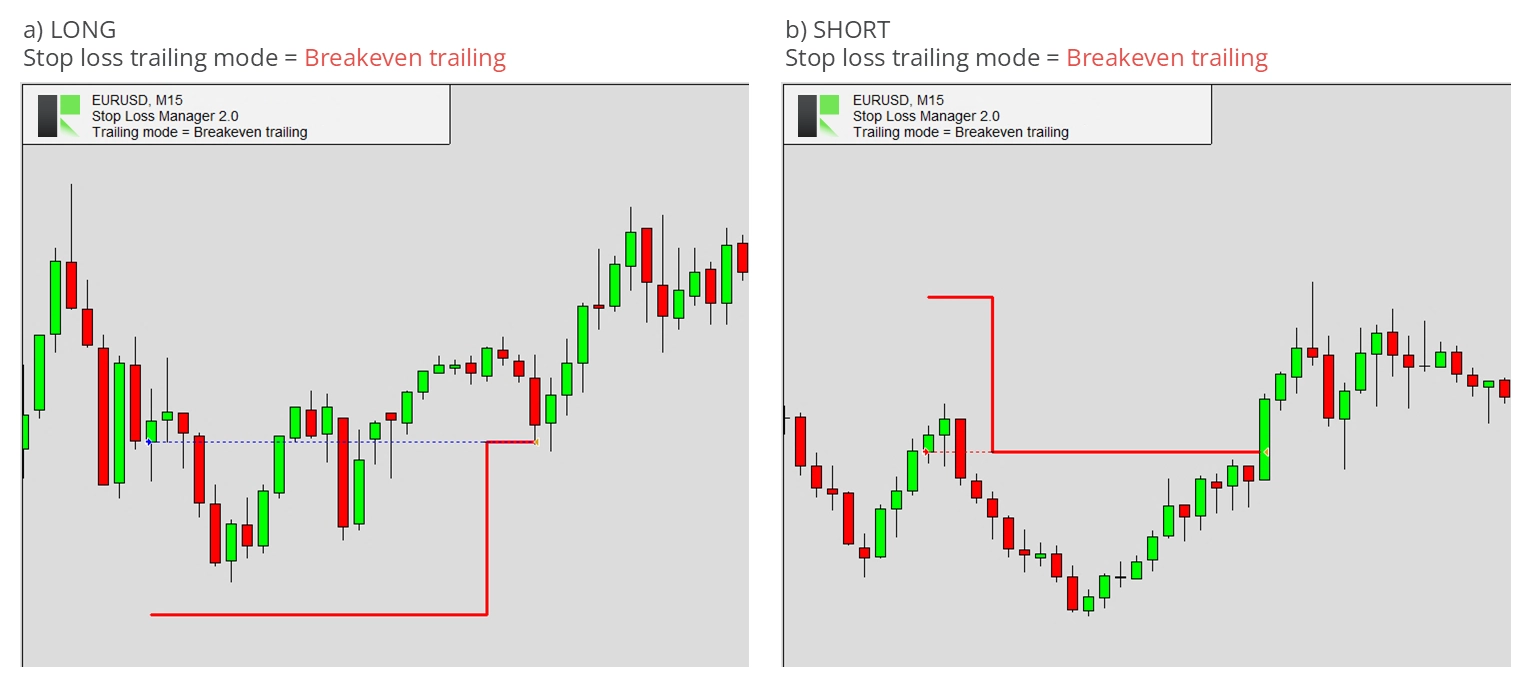
تتبع نقطة التعادل
هذه طريقة يُضبط فيها أمر وقف الخسارة إلى سعر الدخول بمجرد تحقيق ربح صافٍ يساوي الصفر. تضمن هذه الطريقة ألا تُسفر الصفقة عن خسارة من تلك اللحظة فصاعداً، دون احتساب تأثيرات الانزلاق السعري أو العمولة.
فيما يلي بعض الأمثلة التي توضح تطبيق هذه الطريقة.