Signova EA
Detailed user manual
Quick start
INFO
This quick start guide takes only 3–5 minutes to follow.
Download
You can download Signova here. It is delivered as a single ZIP file that installs into both MetaTrader 4 and MetaTrader 5. You also need a MetaTrader account from a broker.
If you do not have a trading account yet, feel free to read our broker comparison, where we have listed some good options.
Installation
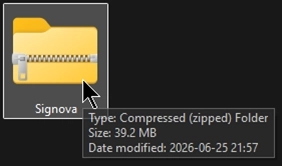
Once the download is complete, you’ll have a ZIP file named Signova. Locate it in your downloads folder and open it to view its contents.
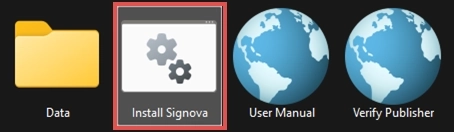
Inside the archive, run the Install Signova script to begin the installation.
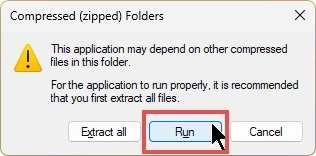
When you start the installer directly from the ZIP, Windows shows a Compressed (zipped) Folders notice. Simply click Run to continue, as shown below. Alternatively, you can extract all files in advance and then start Install Signova from the extracted folder. Note that this step may look slightly different if you open the archive with a third-party tool such as WinZip or WinRAR.
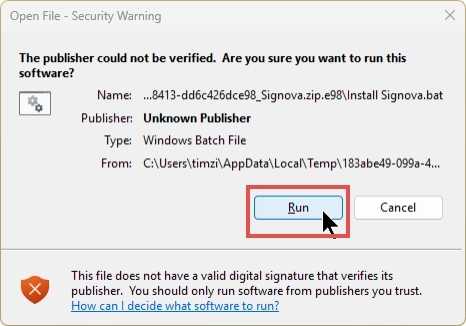
Because the installer script is not digitally signed, Windows displays an Open File - Security Warning that lists the publisher as Unknown Publisher. This is expected, so click Run to proceed. If you’d like to check the file beforehand, use the Verify Publisher shortcut included in the archive.
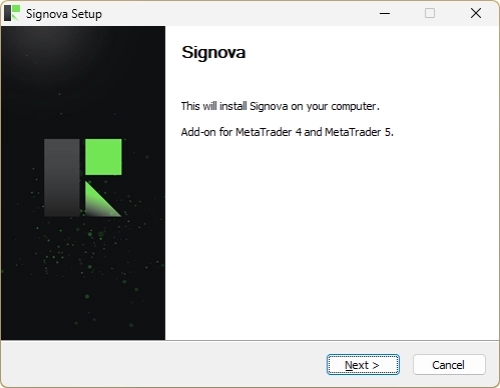
The Signova Setup wizard then opens and installs the Expert Advisor for both MetaTrader 4 and MetaTrader 5. Click Next and follow the on-screen steps to complete the installation.
INFO
The setup installs Signova into every MetaTrader 4 and MetaTrader 5 installation found on your computer. If you add another MetaTrader later, simply run the installation again to add Signovato that new instance.
You do not need to update Signova manually. Whenever a new version becomes available, Signova notifies you directly in its user interface and asks for your consent before installing it. Nothing is ever updated in the background without your agreement. When you accept, Signova applies the update and reloads cleanly so the new version takes effect. You can also decline for now and keep running your current version; Signova will ask you again next time.
Start of application
After installation, open the MetaTrader instance where you want to run Signova. Because Signova communicates with a backend server, a few MetaTrader settings need to be enabled first.
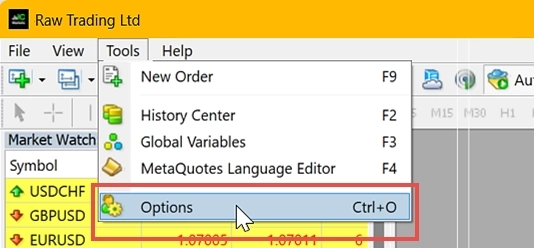
Open the Tools > Options menu.
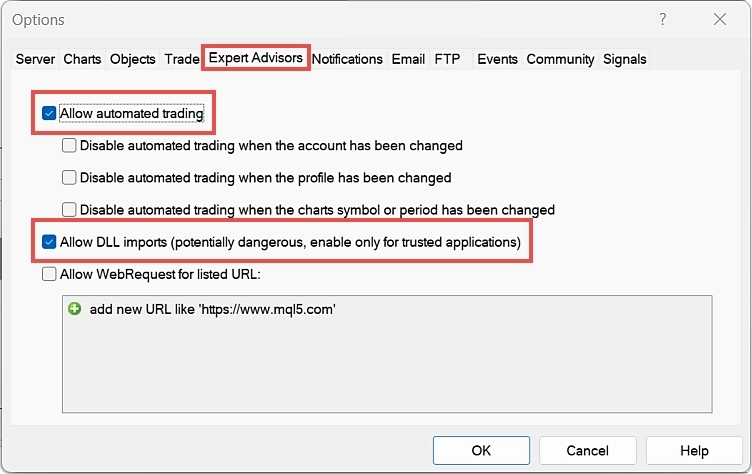
Navigate to the Expert Advisors tab and tick the boxes for Allow automated trading and Allow DLL imports.
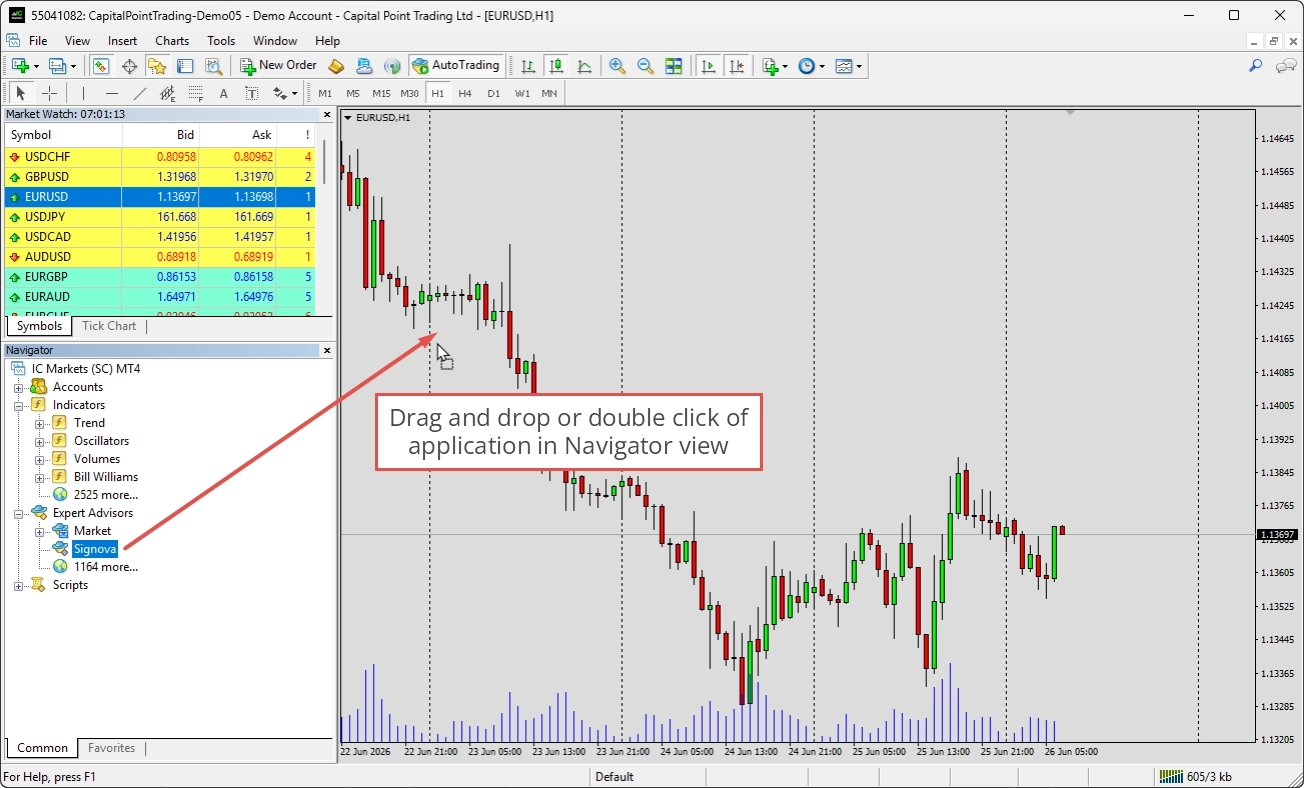
You can find Signova in the Navigator view under Expert Advisors. If it isn’t listed yet, simply right-click anywhere in the Navigator and choose Refresh to update the view. To start it, double-click on it or drag and drop it onto a chart in your chart view.
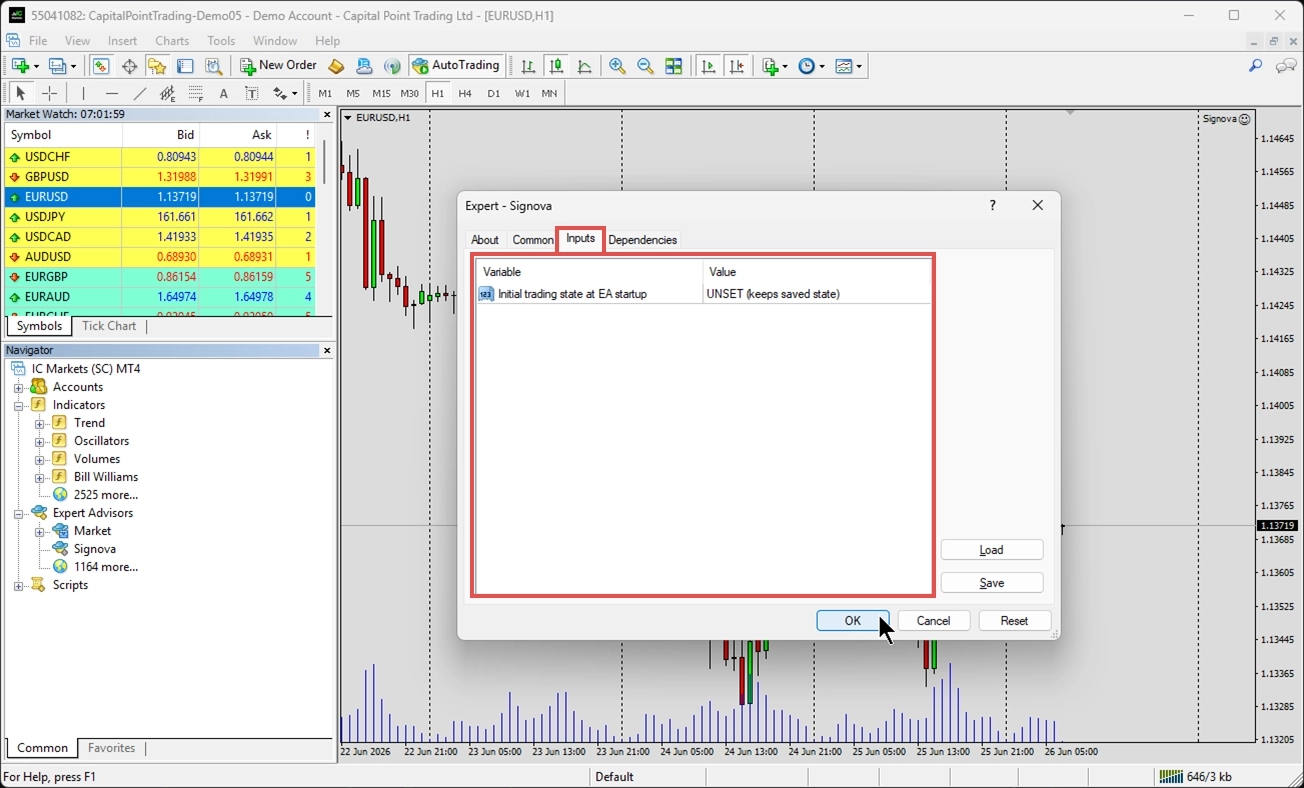
A welcome panel appears every time you start Signova. It lets you check the version number and adjust the input parameters. Signova comes with only one input setting: whether the trading state is enabled when it starts. The trading state controls whether Signova is allowed to open trades. Since the default values are already well-adjusted, you can simply leave the input parameters as they are. You can always change this setting later through the user interface as well.
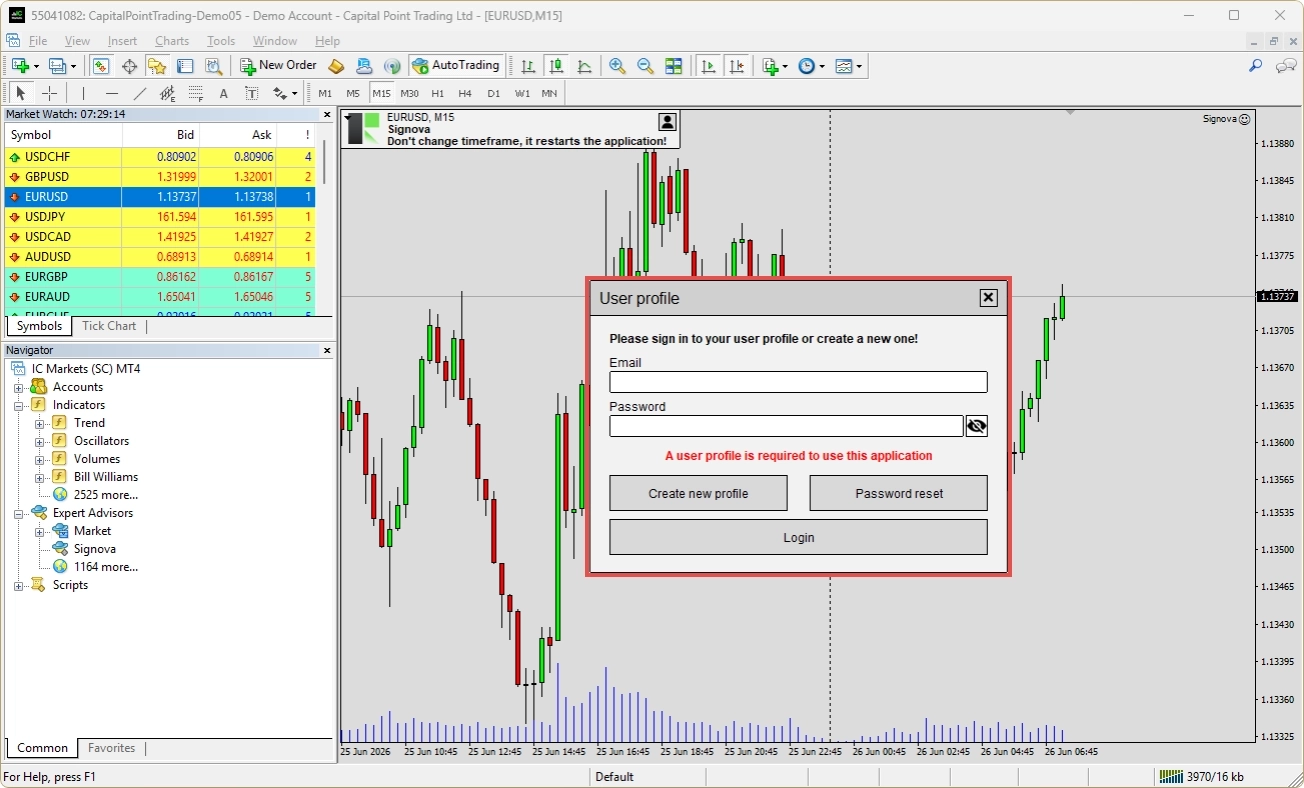
Before Signova starts, it asks you to log in with an FEA Trading user profile. Please create a new account or use an existing one. The user profile you create here can be used universally across every login mask on our website and other applications.
INFO
Signova runs inside MetaTrader, so MetaTrader needs to stay open and connected for trading to continue. If you want it running around the clock without keeping your own computer on, consider a VPS. To get started, read our Forex VPS starting guide.
Home screen
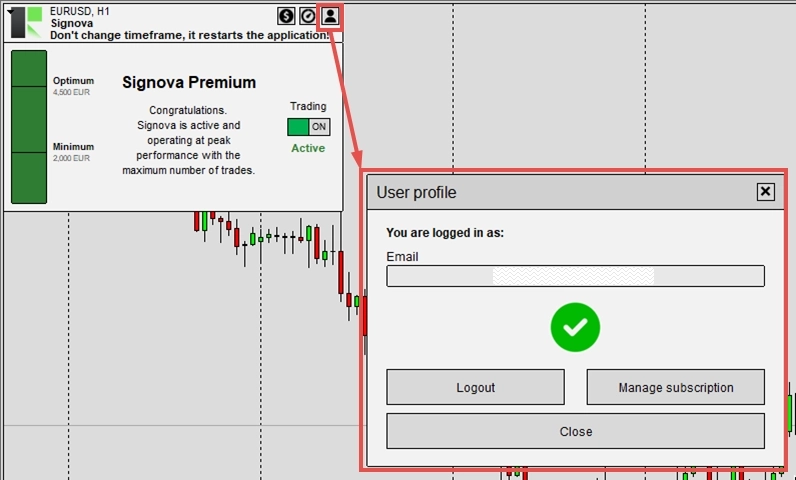
Once Signova is started, the home screen appears.
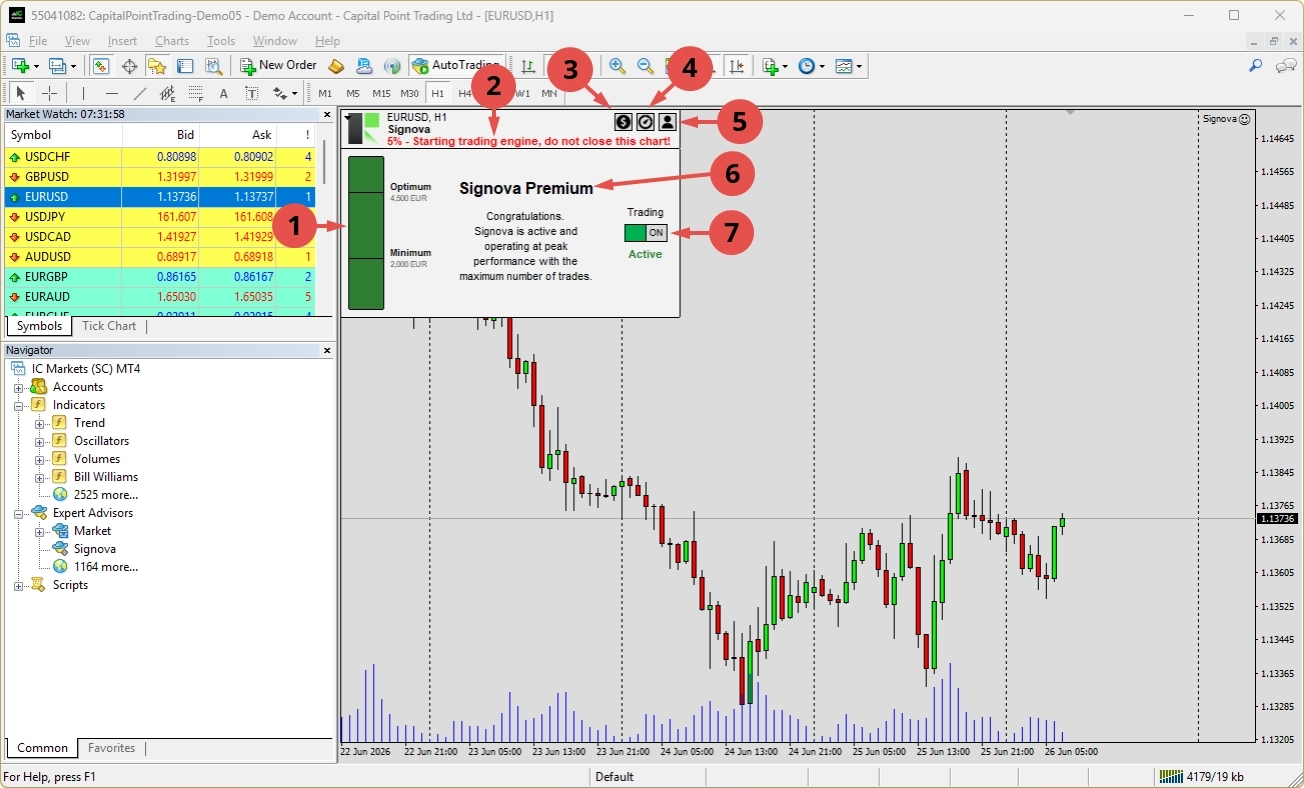
The user interface is intentionally kept very simple. It contains the following elements:
- Equity indicator: because Signova follows strict risk and money management, each Signova version requires a minimum account equity. Below that minimum, trading cannot start, since proper risk and money management cannot be ensured. Between the minimum and optimum values everything is fine, and above the optimum the risk management is very robust.
- Notification indicator: a general indicator for important notifications.
- Symbol settings: a button that opens the symbol settings dialogue.
- Risk settings: a button that opens the risk settings dialogue.
- User profile: a button that opens the user profile dialogue.
- Tier indicator: here the application indicates the tier you have subscribed to. During the test period, we grant you Signova Premium. Afterwards, it will show the tier you have actually subscribed to.
- Trading switch: lets you enable or disable trading at any time. If the input setting was left OFF, the trading state is disabled at startup. Whenever you change the trading state, it is saved, so the application always starts the way you last configured it.
INFO
Please keep in mind that the trading engine can take a few minutes to start up. Signova runs on a sophisticated trading engine that needs to complete a lot of initial calculations before it works properly. Please do not restart the application while it is loading, and note that the other buttons in the interface may stay unresponsive until loading has finished.
To learn how to adjust symbols, risk, and volume, see the Configuration chapter.
Need help?
Many common questions are already answered in our frequently asked questions for Signova. Please take a look there first. If you still need help, our support team is happy to assist.
Uninstall
There are several common ways to uninstall Signova on Windows:
Via the Start menu (easiest): Open the Windows Start menu, find Signova in the app list, right-click it, and select Uninstall.
Via Windows Settings: Go to Settings > Apps > Installed apps (on Windows 11) or Settings > Apps > Apps & features (on Windows 10), locate Signova in the list, click it, and choose Uninstall.
Via the Control Panel: Open the Control Panel and go to Programs > Programs and Features, select Signova from the list, and click Uninstall.
Any of these methods will completely remove the application from your computer.
Configuration
Signova is intentionally kept as simple as possible and only exposes the bare minimum of settings that are safe to adjust. As already mentioned, the default values are already ideal. However, if you wish, you can adjust certain aspects of the trading system.
Symbols settings
Signova trades a list of forex symbols on your behalf. The symbol settings let you decide, for each symbol, whether trading is allowed and in which direction.
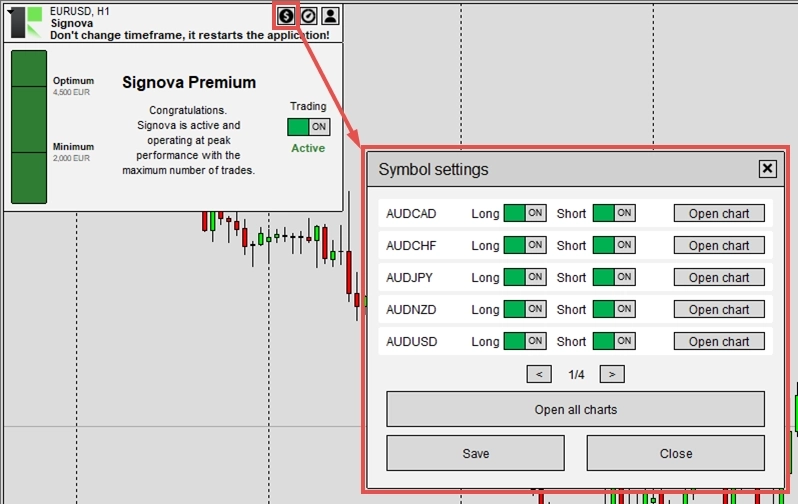
Every symbol available for your subscription tier is listed with two switches:
- Long: allow Signova to open buy trades for this symbol.
- Short: allow Signova to open sell trades for this symbol.
Both switches are enabled by default. Turn one off to block new trades in that direction, or turn both off to disable the symbol completely. These settings only affect new trades. Positions that are already open are never closed by changing a switch.
For each symbol, you’ll also find a button that opens a new chart for that symbol, which quickly lets you double-check the trading activity and validate trades. At the bottom there is also a general button that opens every traded symbol, each in its own chart.
The list of available symbols depends on your subscription tier: higher tiers (Light → Standard → Premium) unlock more symbols for greater diversification.
After making changes, click Save to apply them. The indicator at the top shows Unsaved changes until you save, then Saved. Whenever a trade is skipped because of these switches, the reason is recorded in the trade activity log.
Risk settings
Signova takes care of risk and money management for you, and its default values are already well-balanced. If you wish, the risk settings let you fine-tune how much each trade risks and how many trades may run at the same time.
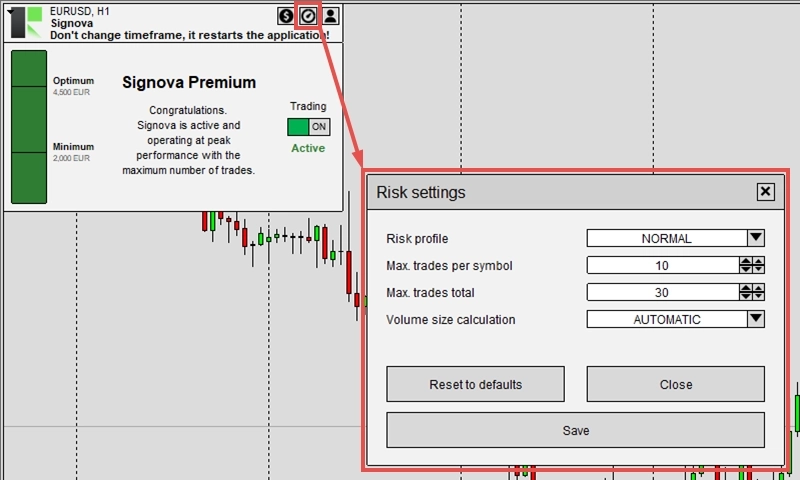
Risk profile
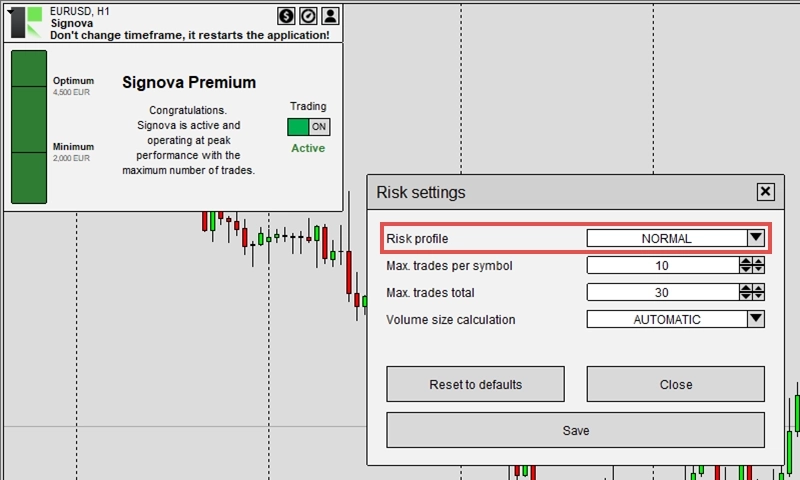
The Risk profile parameter lets you adjust how much you trade per position.
The default setting (NORMAL - Recommended) uses the volume determined by Signova’s balanced trading logic. If you want to quickly adjust your risk level, simply change this parameter. It will multiply or divide the standard volume size accordingly.
Here’s how each risk profile affects your trade size:
- LOWEST: Minimum volume → 0.01 Lots
- LOW: Standard ÷ 3 → 0.20 Lots
- MODERATE: Standard ÷ 2 → 0.30 Lots
- NORMAL: Standard volume → 0.60 Lots (Recommended)
- HIGH: Standard × 2 → 1.20 Lots
- EXTREME: Standard × 3 → 1.80 Lots
INFO
Note: The lot values above are only examples, based on a standard volume of 0.60 Lots. Signova calculates the standard volume from your account size, so your actual figures will differ. The risk profile only multiplies or divides that calculated standard volume. With the standard (NORMAL) volume, the actual risk per trade ranges from 0.5% to 1.25% of your account, depending on Signova’s logic and the traded symbol.
This gives you a simple way to scale your position sizes up or down without changing Signova’s underlying risk and money management calculations.
Maximum trades
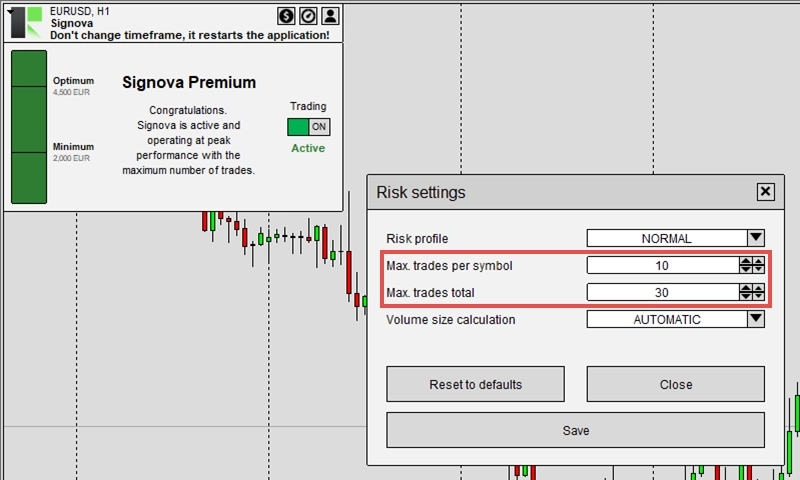
These two settings cap how many trades Signova may hold open at the same time, limiting your overall market exposure.
- Max. trades per symbol: the maximum number of trades that may be open on a single symbol at once. Once this limit is reached, Signova opens no further trades on that symbol until one of them closes.
- Max. trades total: the maximum number of trades that may be open across all symbols combined. Once this limit is reached, Signova opens no new trades on any symbol until one of them closes.
Lower these values to reduce the number of simultaneous positions, or raise them to allow more. Like the symbol switches, these limits only affect new trades; positions that are already open are never closed by changing them.
Volume size calculation
The Volume size calculation and Max. volume size per trade parameters work together to give you more detailed control over your position sizes and risk.
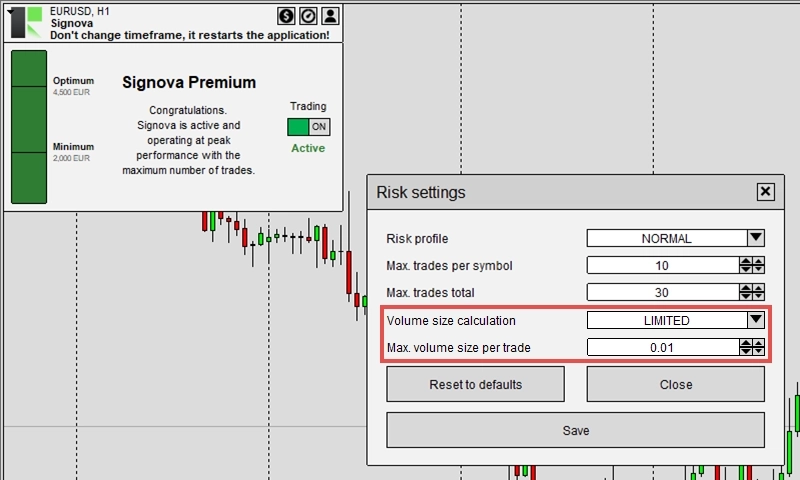
For Volume size calculation, you can choose:
- AUTOMATIC: Calculates volume based on risk management, money management, and current market conditions. This is the recommended default setting.
- LIMITED: Calculates volume the same way as automatic, but caps it at the maximum defined in Max. volume size per trade.
If you want to start cautiously, you can use LIMITED mode with a small volume cap to evaluate Signova’s performance. Once you’re confident, switch to AUTOMATIC mode for optimal results. In automatic mode, Signova follows a maximum drawdown rule while maximizing performance, ensuring your account equity is always properly managed.
Click Save to apply your changes.
User profile
The user profile dialogue is where you manage your FEA Trading user profile. You can log in with an existing profile, create a new profile, or reset the password of an existing one. The profile you create here can be used universally across all of our web services and applications.