

Signova
Manual do usuário detalhado
Início rápido
INFO
Este guia de início rápido leva apenas 3 a 5 minutos para ser seguido.
Download
Você pode baixar o Signova aqui. Ele é entregue como um único arquivo ZIP que instala o Expert Advisor tanto no MetaTrader 4 quanto no MetaTrader 5. Você também precisará de uma conta MetaTrader em um broker.
Instalação
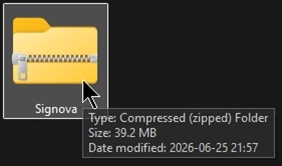
Após o download, você terá um arquivo ZIP chamado Signova. Localize-o na sua pasta de downloads e abra-o para ver o conteúdo.
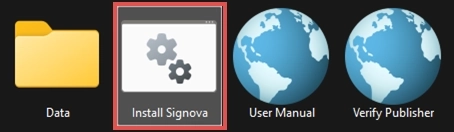
Dentro do arquivo, execute o script Install Signova para iniciar a instalação.
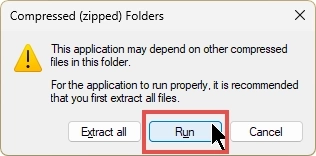
Ao iniciar o instalador diretamente do ZIP, o Windows exibe um aviso de Compressed (zipped) Folders. Basta clicar em Run para continuar, conforme mostrado abaixo. Como alternativa, você pode extrair todos os arquivos com antecedência e depois iniciar o Install Signova na pasta extraída. Observe que esta etapa pode ter uma aparência ligeiramente diferente se você abrir o arquivo com uma ferramenta de terceiros, como WinZip ou WinRAR.
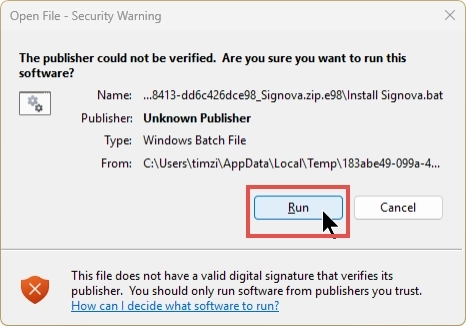
Como o script do instalador não é assinado digitalmente, o Windows exibe um aviso de Open File - Security Warning indicando o editor como Unknown Publisher. Isso é esperado, então clique em Run para prosseguir. Se quiser verificar o arquivo antes, use o atalho Verify Publisher incluído no arquivo.
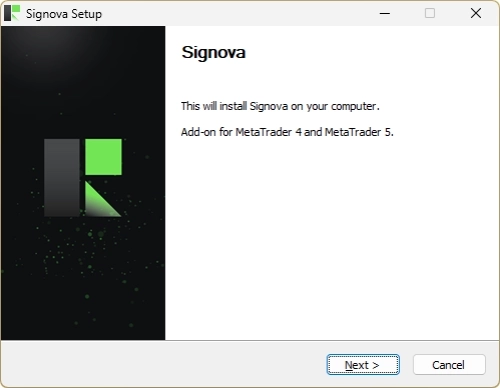
O assistente Signova Setup é aberto em seguida e instala o Expert Advisor tanto no MetaTrader 4 quanto no MetaTrader 5. Clique em Next e siga as etapas na tela para concluir a instalação.
INFO
A instalação instala o Signova em todas as instâncias do MetaTrader 4 e MetaTrader 5 encontradas no seu computador. Se você adicionar outro MetaTrader posteriormente, basta executar a instalação novamente para adicioná-lo a essa nova instância.
Você não precisa atualizar o Signova manualmente. Sempre que uma nova versão fica disponível, o Signova notifica você diretamente na interface do usuário e pede seu consentimento antes de instalá-la. Nada é atualizado em segundo plano sem o seu consentimento. Quando você aceita, o Signova aplica a atualização e recarrega de forma limpa para que a nova versão entre em vigor. Você também pode recusar por enquanto e continuar usando a versão atual; o Signova perguntará novamente na próxima vez.
Inicialização do aplicativo
Após a instalação, abra a instância do MetaTrader onde deseja executar o Signova. Como o Signova se comunica com um servidor de backend, algumas configurações do MetaTrader precisam ser habilitadas primeiro.
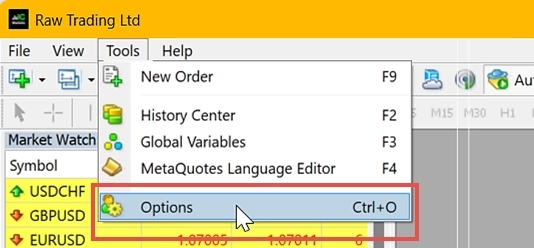
Abra o menu Ferramentas > Opções.
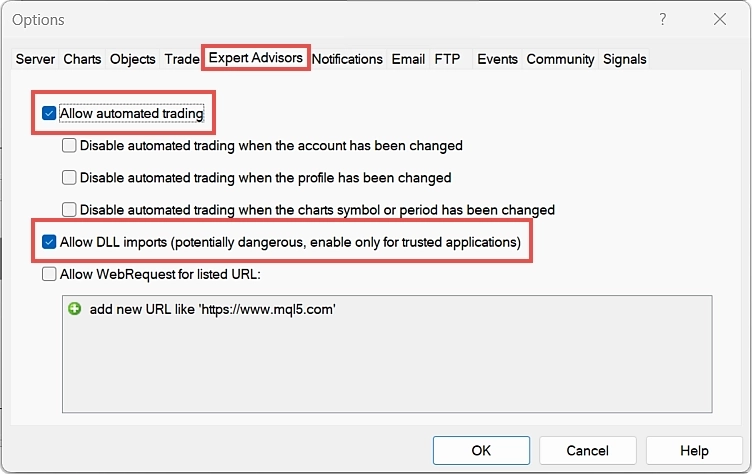
Navegue até a aba Expert Advisors e marque as caixas Permitir negociação automática e Permitir importações de DLL.
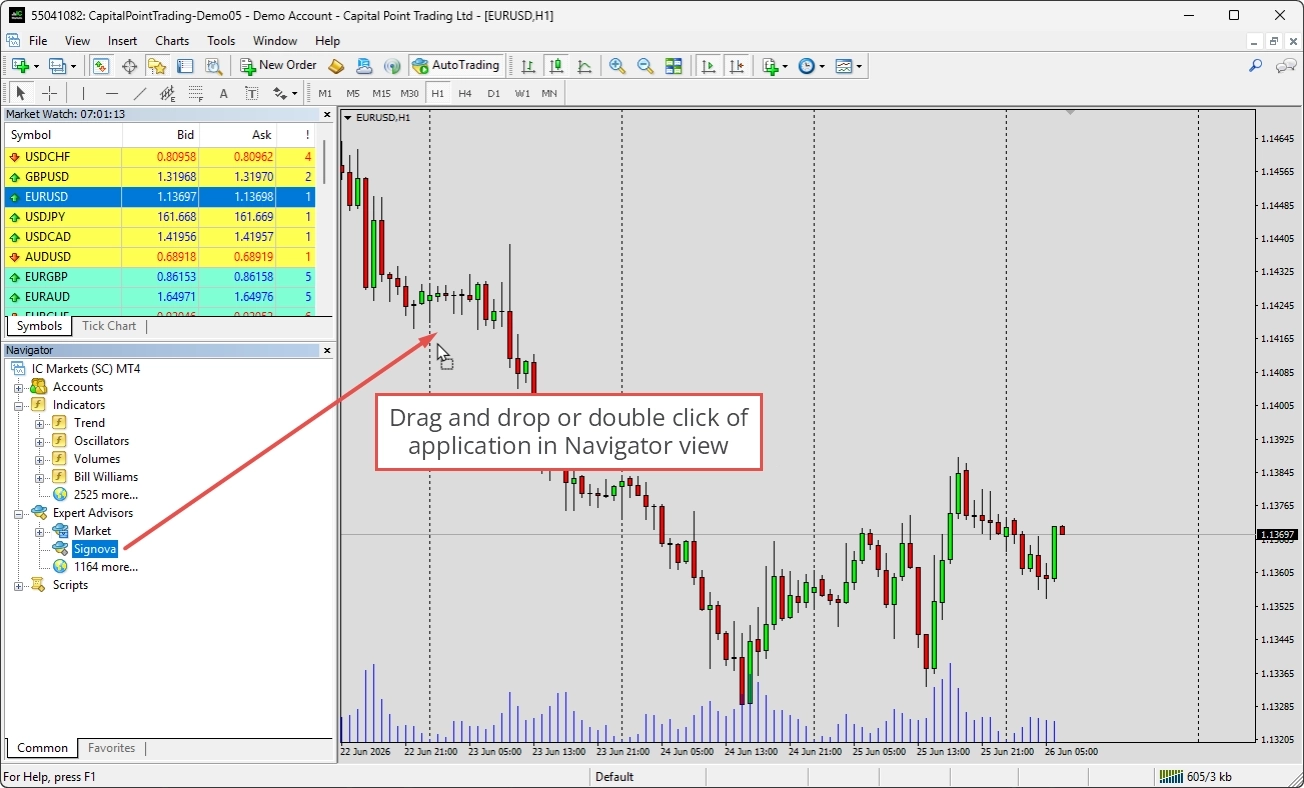
Você pode encontrar o Signova na visualização Navigator, em Expert Advisors. Se ele ainda não estiver listado, clique com o botão direito em qualquer lugar no Navigator e escolha Atualizar para atualizar a visualização. Para iniciá-lo, clique duas vezes nele ou arraste-o e solte-o em um gráfico na sua área de gráficos.
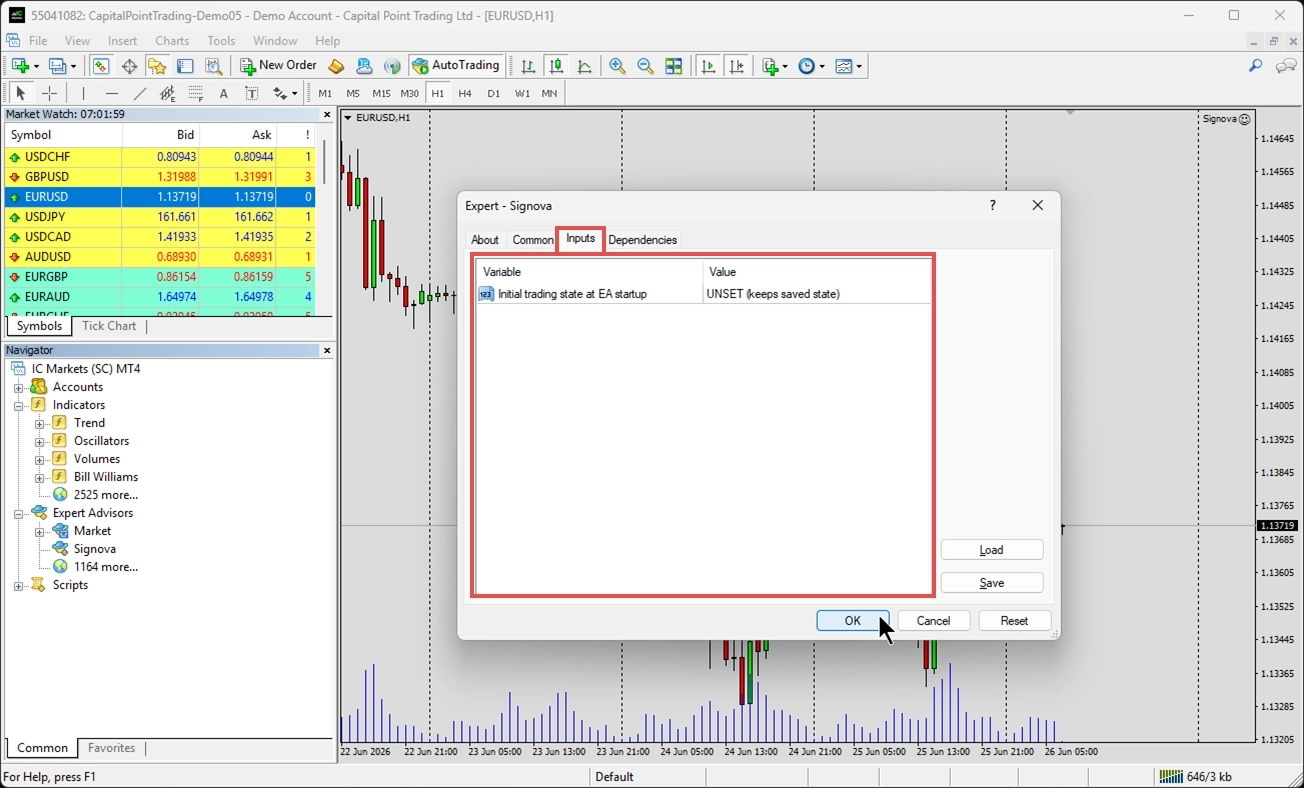
Um painel de boas-vindas aparece toda vez que você inicia o Signova. Ele permite verificar o número da versão e ajustar os parâmetros de entrada. O Signova tem apenas uma configuração de entrada: se o estado de trading está habilitado ao iniciar. O estado de trading controla se o Signova está autorizado a abrir trades. Como os valores padrão já estão bem ajustados, você pode simplesmente deixar os parâmetros de entrada como estão. Você sempre pode alterar essa configuração posteriormente pela interface do usuário também.
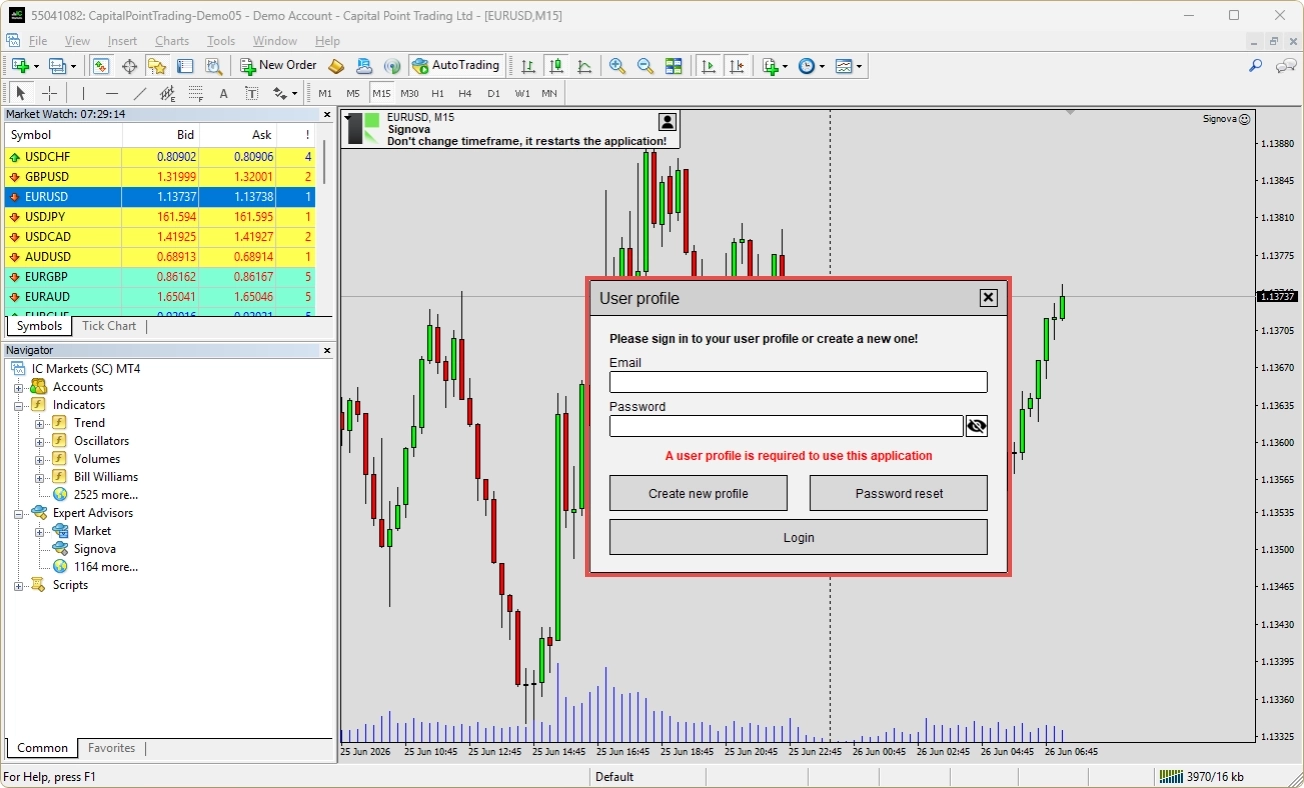
Antes de o Signova iniciar, ele solicita que você faça login com um perfil de usuário FEA Trading. Crie uma nova conta ou use uma existente. O perfil de usuário criado aqui pode ser usado de forma universal em todas as telas de login do nosso site e em outros aplicativos.
INFO
O Signova é executado dentro do MetaTrader, portanto o MetaTrader precisa permanecer aberto e conectado para que o trading continue. Se você quiser que ele funcione ininterruptamente sem manter seu próprio computador ligado, considere um VPS.
Tela inicial
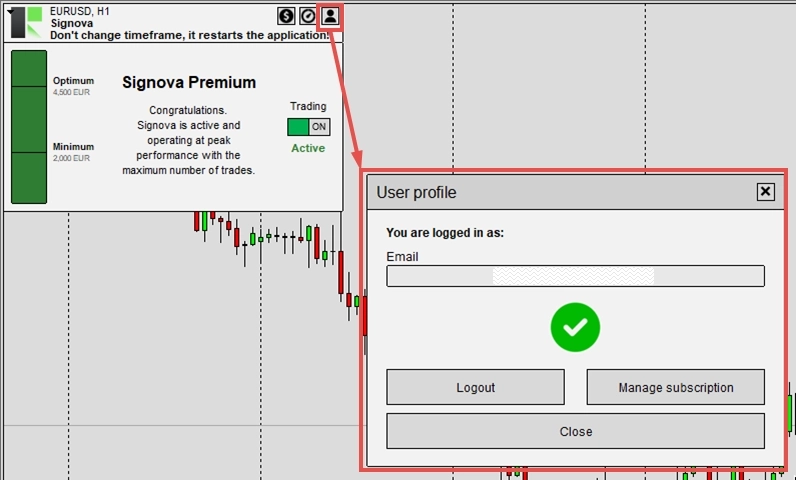
Assim que o Signova é iniciado, a tela inicial aparece.
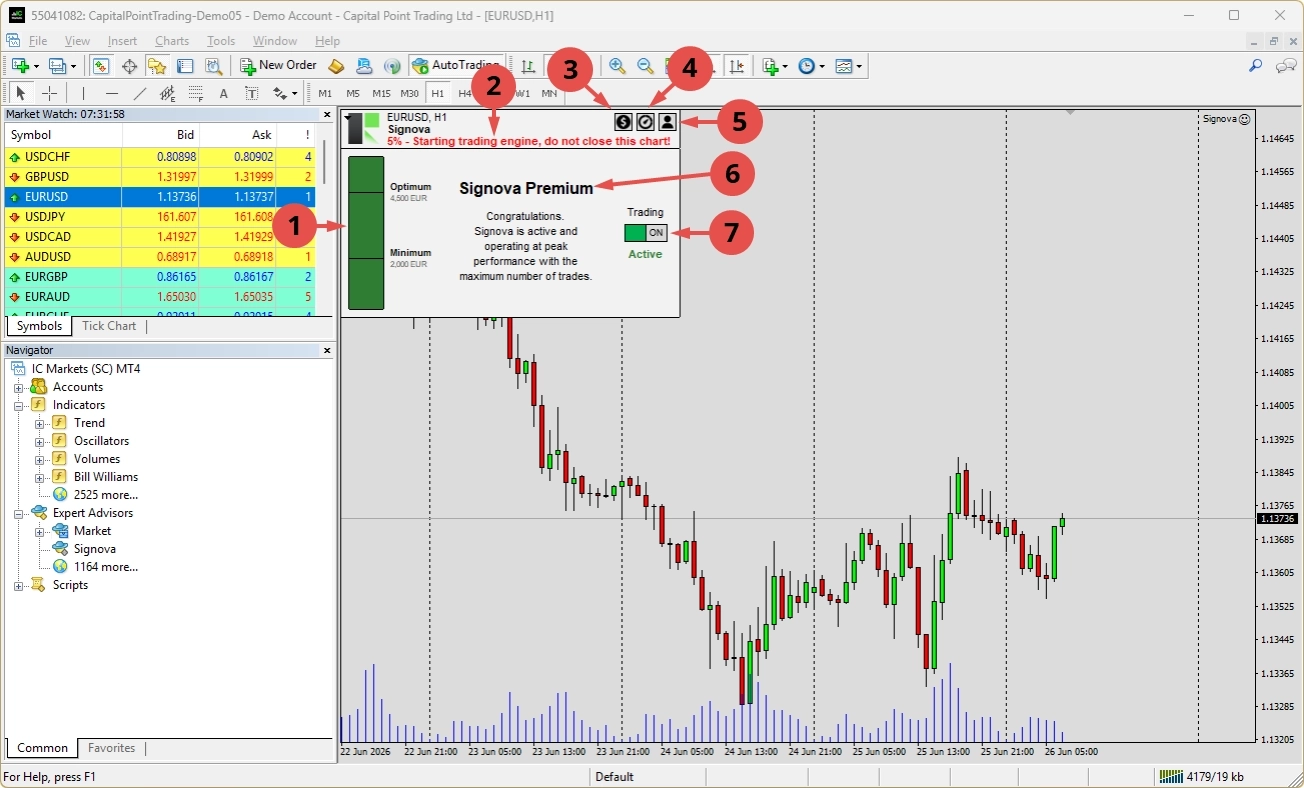
A interface do usuário é mantida intencionalmente muito simples. Ela contém os seguintes elementos:
- Indicador de patrimônio: como o Signova segue um gerenciamento de risco e dinheiro rigoroso, cada versão do Signova exige um patrimônio mínimo na conta. Abaixo desse mínimo, o trading não pode começar, pois o gerenciamento adequado de risco e dinheiro não pode ser garantido. Entre os valores mínimo e ótimo tudo está bem, e acima do ótimo o gerenciamento de risco é muito robusto.
- Indicador de notificações: um indicador geral para notificações importantes.
- Configurações de símbolos: um botão que abre o diálogo de configurações de símbolos.
- Configurações de risco: um botão que abre o diálogo de configurações de risco.
- Perfil de usuário: um botão que abre o diálogo de perfil de usuário.
- Indicador de nível: aqui o aplicativo indica o nível ao qual você está inscrito. Durante o período de teste, concedemos a você o Signova Premium. Depois disso, ele exibirá o nível ao qual você efetivamente está inscrito.
- Chave de trading: permite habilitar ou desabilitar o trading a qualquer momento. Se a configuração de entrada foi deixada como OFF, o estado de trading fica desativado na inicialização. Sempre que você alterar o estado de trading, ele é salvo, de modo que o aplicativo sempre inicia da forma como você o configurou pela última vez.
INFO
Tenha em mente que o mecanismo de trading pode levar alguns minutos para iniciar. O Signova é executado em um mecanismo de trading sofisticado que precisa concluir muitos cálculos iniciais antes de funcionar corretamente. Não reinicie o aplicativo enquanto ele estiver carregando, e observe que os outros botões da interface podem permanecer sem resposta até que o carregamento seja concluído.
Para saber como ajustar símbolos, risco e volume, consulte o capítulo Configuração.
Precisa de ajuda?
Muitas perguntas comuns já são respondidas nas nossas perguntas frequentes sobre o Signova. Por favor, consulte-as primeiro. Se ainda precisar de ajuda, nossa equipe de suporte terá prazer em ajudar.
Desinstalar
Existem várias formas comuns de desinstalar o Signova no Windows:
Pelo menu Iniciar (mais fácil): Abra o menu Iniciar do Windows, encontre o Signova na lista de aplicativos, clique com o botão direito e selecione Desinstalar.
Pelas Configurações do Windows: Vá em Configurações > Aplicativos > Aplicativos instalados (no Windows 11) ou Configurações > Aplicativos > Aplicativos e recursos (no Windows 10), localize o Signova na lista, clique nele e escolha Desinstalar.
Pelo Painel de Controle: Abra o Painel de Controle e vá em Programas > Programas e Recursos, selecione o Signova na lista e clique em Desinstalar.
Qualquer um desses métodos removerá o aplicativo completamente do seu computador.
Configuração
O Signova é mantido intencionalmente tão simples quanto possível e expõe apenas o mínimo de configurações que são seguras de ajustar. Como já mencionado, os valores padrão já são ideais. No entanto, se desejar, você pode ajustar determinados aspectos do sistema de trading.
Configurações de símbolos
O Signova negocia uma lista de símbolos forex em seu nome. As configurações de símbolos permitem que você decida, para cada símbolo, se o trading é permitido e em qual direção.
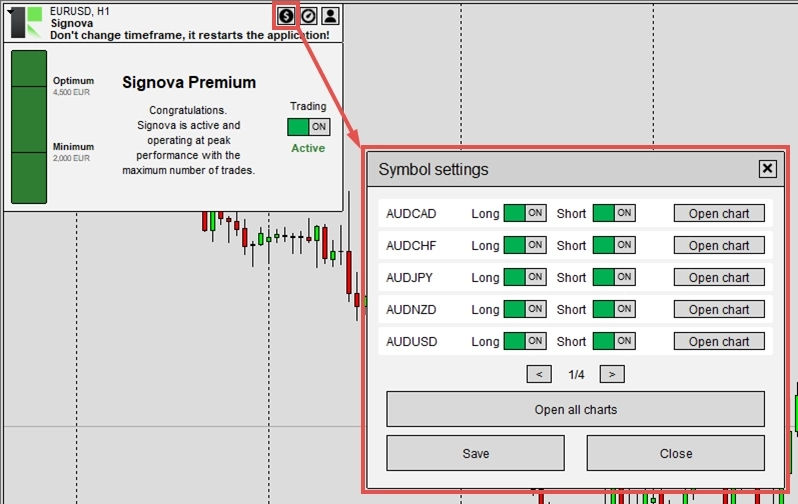
Cada símbolo disponível para o seu nível de assinatura é listado com dois botões:
- Long: permite que o Signova abra trades de compra para este símbolo.
- Short: permite que o Signova abra trades de venda para este símbolo.
Ambos os botões estão ativados por padrão. Desative um para bloquear novos trades naquela direção, ou desative ambos para desabilitar o símbolo completamente. Essas configurações afetam apenas trades novos. Posições já abertas nunca são fechadas pela alteração de um botão.
Para cada símbolo, você também encontrará um botão que abre um novo gráfico para aquele símbolo, permitindo verificar rapidamente a atividade de trading e validar os trades. Na parte inferior há também um botão geral que abre todos os símbolos negociados, cada um em seu próprio gráfico.
A lista de símbolos disponíveis depende do seu nível de assinatura: níveis mais altos (Light → Standard → Premium) desbloqueiam mais símbolos para maior diversificação.
Após fazer alterações, clique em Salvar para aplicá-las. O indicador no topo mostra Alterações não salvas até você salvar, depois Salvo. Sempre que um trade for ignorado por causa dessas configurações, o motivo é registrado no log de atividade de trading.
Configurações de risco
O Signova cuida do gerenciamento de risco e dinheiro para você, e seus valores padrão já são bem equilibrados. Se desejar, as configurações de risco permitem ajustar quanto cada trade arrisca e quantos trades podem ocorrer ao mesmo tempo.
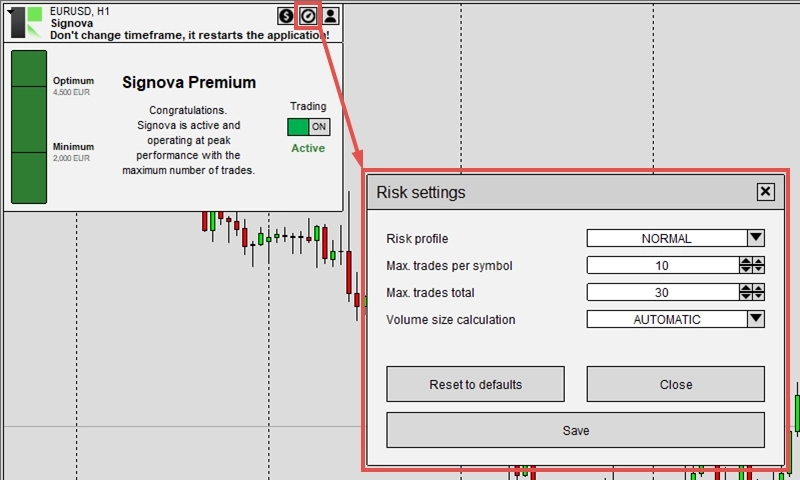
Perfil de risco
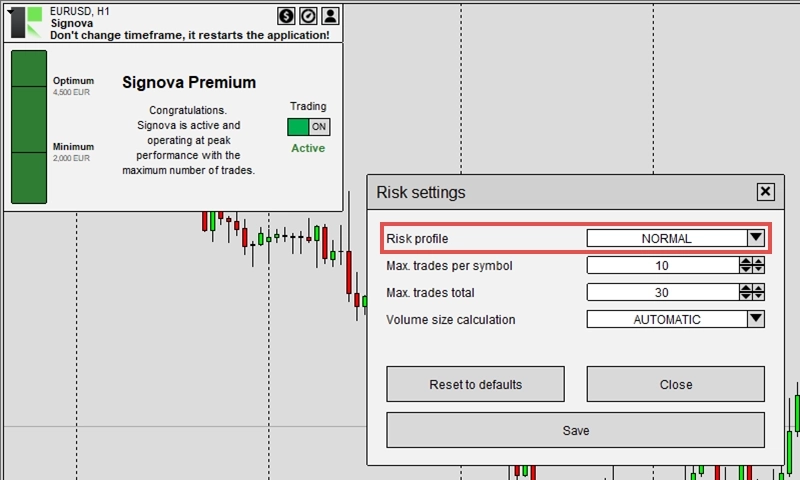
O parâmetro Perfil de risco permite ajustar quanto você negocia por posição.
A configuração padrão (NORMAL - Recomendado) usa o volume determinado pela lógica de trading equilibrada do Signova. Se você quiser ajustar rapidamente seu nível de risco, basta alterar este parâmetro. Ele multiplicará ou dividirá o tamanho do volume padrão conforme o caso.
Veja como cada perfil de risco afeta o tamanho do seu trade:
- LOWEST: Volume mínimo → 0,01 Lotes
- LOW: Padrão ÷ 3 → 0,20 Lotes
- MODERATE: Padrão ÷ 2 → 0,30 Lotes
- NORMAL: Volume padrão → 0,60 Lotes (Recomendado)
- HIGH: Padrão × 2 → 1,20 Lotes
- EXTREME: Padrão × 3 → 1,80 Lotes
INFO
Observação: Os valores de lote acima são apenas exemplos, com base em um volume padrão de 0,60 Lotes. O Signova calcula o volume padrão com base no tamanho da sua conta, portanto seus valores reais serão diferentes. O perfil de risco apenas multiplica ou divide esse volume padrão calculado. Com o volume padrão (NORMAL), o risco real por trade varia de 0,5% a 1,25% da sua conta, dependendo da lógica do Signova e do símbolo negociado.
Isso oferece uma maneira simples de escalar o tamanho das suas posições para cima ou para baixo sem alterar os cálculos subjacentes de gerenciamento de risco e dinheiro do Signova.
Máximo de trades
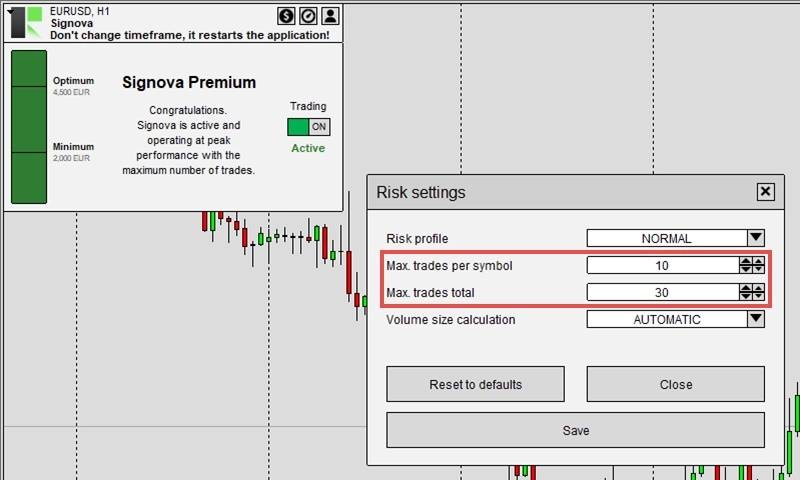
Estas duas configurações limitam quantos trades o Signova pode manter abertos ao mesmo tempo, restringindo sua exposição geral ao mercado.
- Máx. trades por símbolo: o número máximo de trades que podem estar abertos em um único símbolo ao mesmo tempo. Quando esse limite é atingido, o Signova não abre mais trades naquele símbolo até que um deles seja fechado.
- Máx. trades total: o número máximo de trades que podem estar abertos em todos os símbolos combinados. Quando esse limite é atingido, o Signova não abre novos trades em nenhum símbolo até que um deles seja fechado.
Reduza esses valores para diminuir o número de posições simultâneas, ou aumente-os para permitir mais. Assim como os botões de símbolo, esses limites afetam apenas trades novos; posições já abertas nunca são fechadas pela alteração deles.
Cálculo do tamanho do volume
Os parâmetros Cálculo do tamanho do volume e Tamanho máximo de volume por trade funcionam em conjunto para oferecer um controle mais detalhado sobre o tamanho das suas posições e o risco.
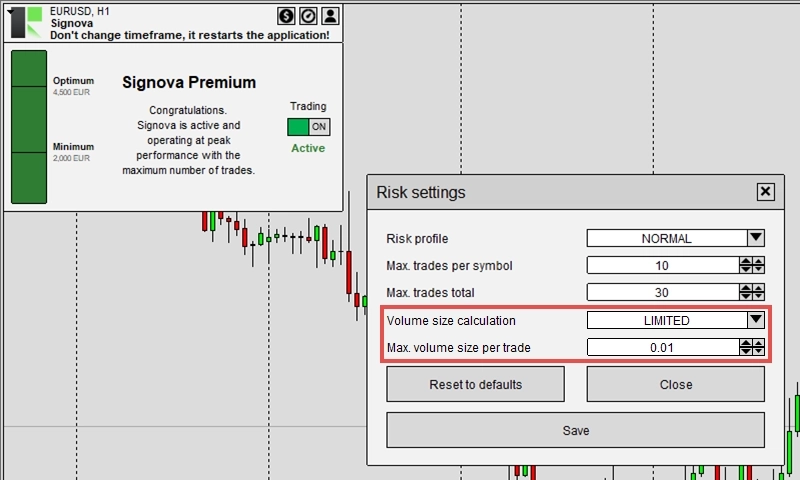
Para Cálculo do tamanho do volume, você pode escolher:
- AUTOMATIC: Calcula o volume com base no gerenciamento de risco, gerenciamento de dinheiro e condições atuais do mercado. Esta é a configuração padrão recomendada.
- LIMITED: Calcula o volume da mesma forma que o automático, mas o limita ao máximo definido em Tamanho máximo de volume por trade.
Se você quiser começar com cautela, pode usar o modo LIMITED com um limite de volume pequeno para avaliar o desempenho do Signova. Quando estiver confiante, mude para o modo AUTOMATIC para obter resultados otimizados. No modo automático, o Signova segue uma regra de drawdown máximo enquanto maximiza o desempenho, garantindo que o patrimônio da sua conta seja sempre gerenciado adequadamente.
Clique em Salvar para aplicar suas alterações.
Perfil de usuário
O diálogo de perfil de usuário é onde você gerencia seu perfil de usuário FEA Trading. Você pode fazer login com um perfil existente, criar um novo perfil ou redefinir a senha de um existente. O perfil criado aqui pode ser usado de forma universal em todos os nossos serviços e aplicativos web.